Exnova Sign Up and Login for Trading Account

Plan for a short verification window after you submit documents and be ready to resolve basic issues such as expired IDs or photo-quality rejections. Learn the exact fields required during sign up, how to set a secure login, and quick troubleshooting steps for common access errors so you can move from registration to trading readiness without delays or security gaps.
Signing Up on Exnova: A Step-by-Step Guide
Signing Up for an Exnova Account via Google
Step 1: Access the Exnova WebsiteBegin by opening your preferred web browser and navigating to the Exnova website.
Step 2: Locate the Registration Page
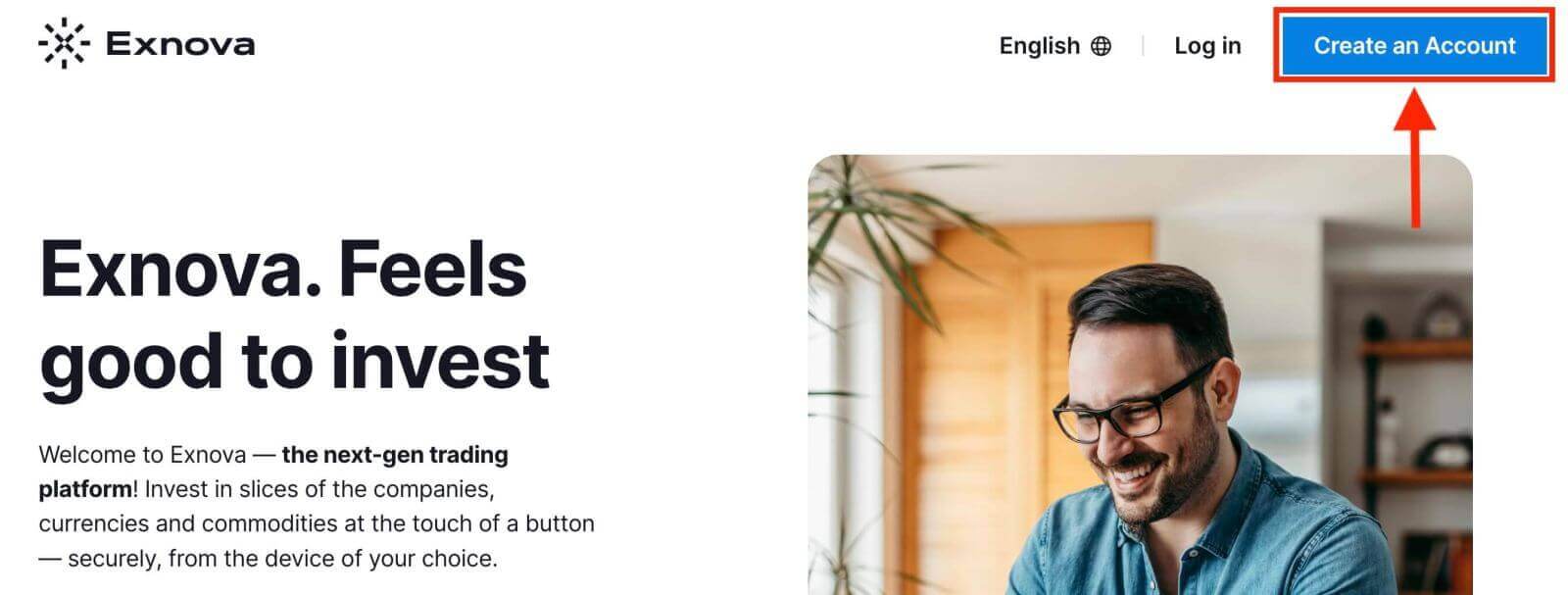
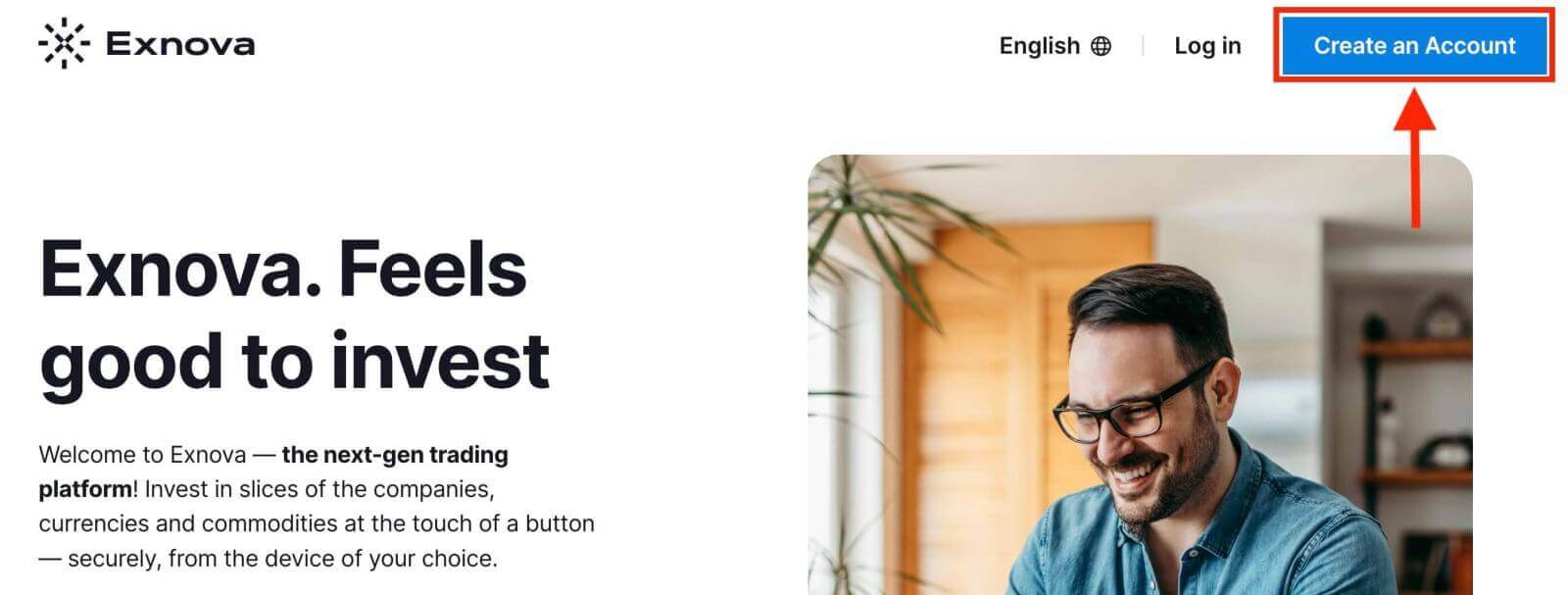
On the Exnova homepage, click the "Create an Account" button. This will direct you to the registration page, where you can initiate the account creation process.
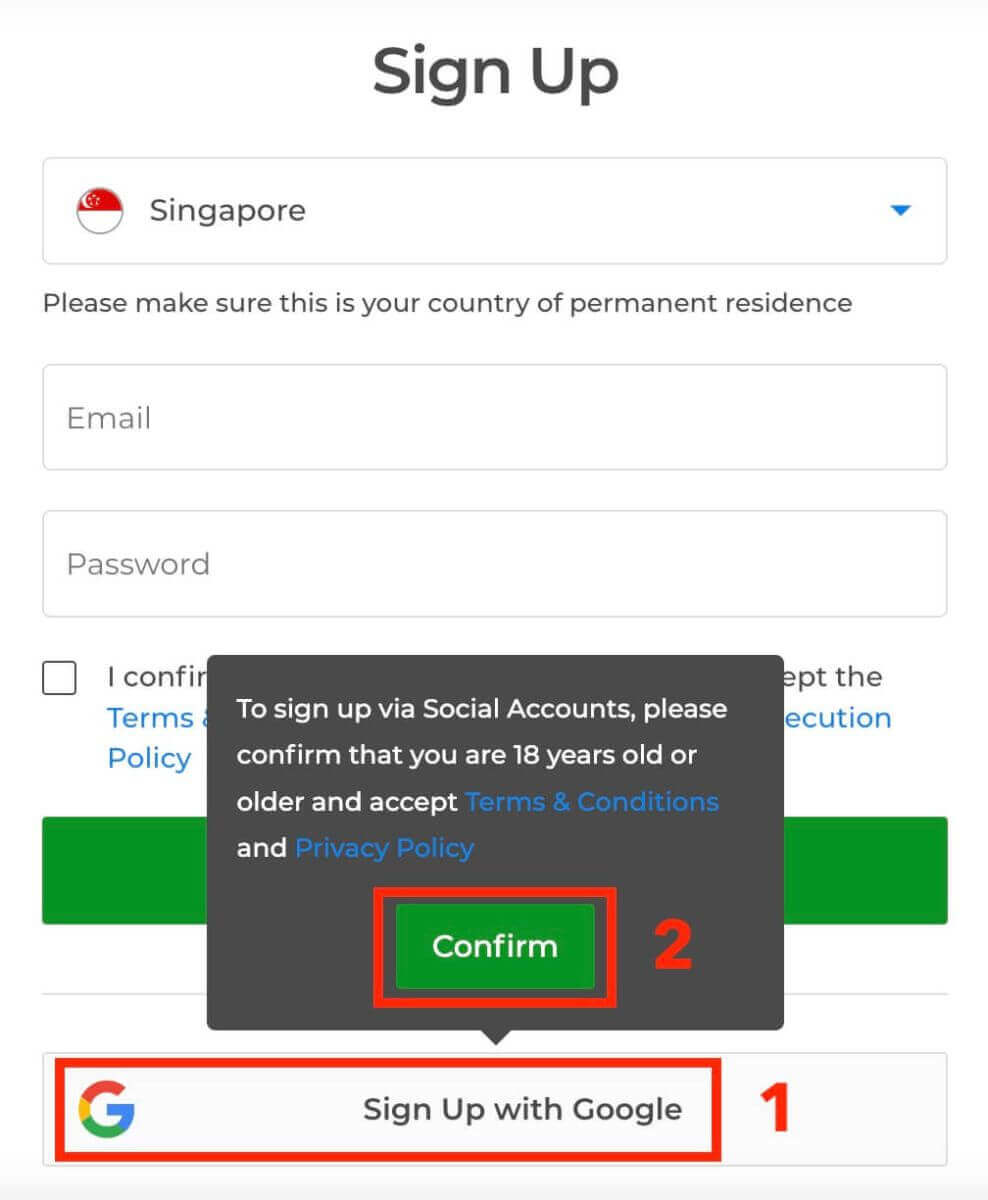
Step 3: You need to authorize your Google account by clicking on the corresponding button in the registration form.
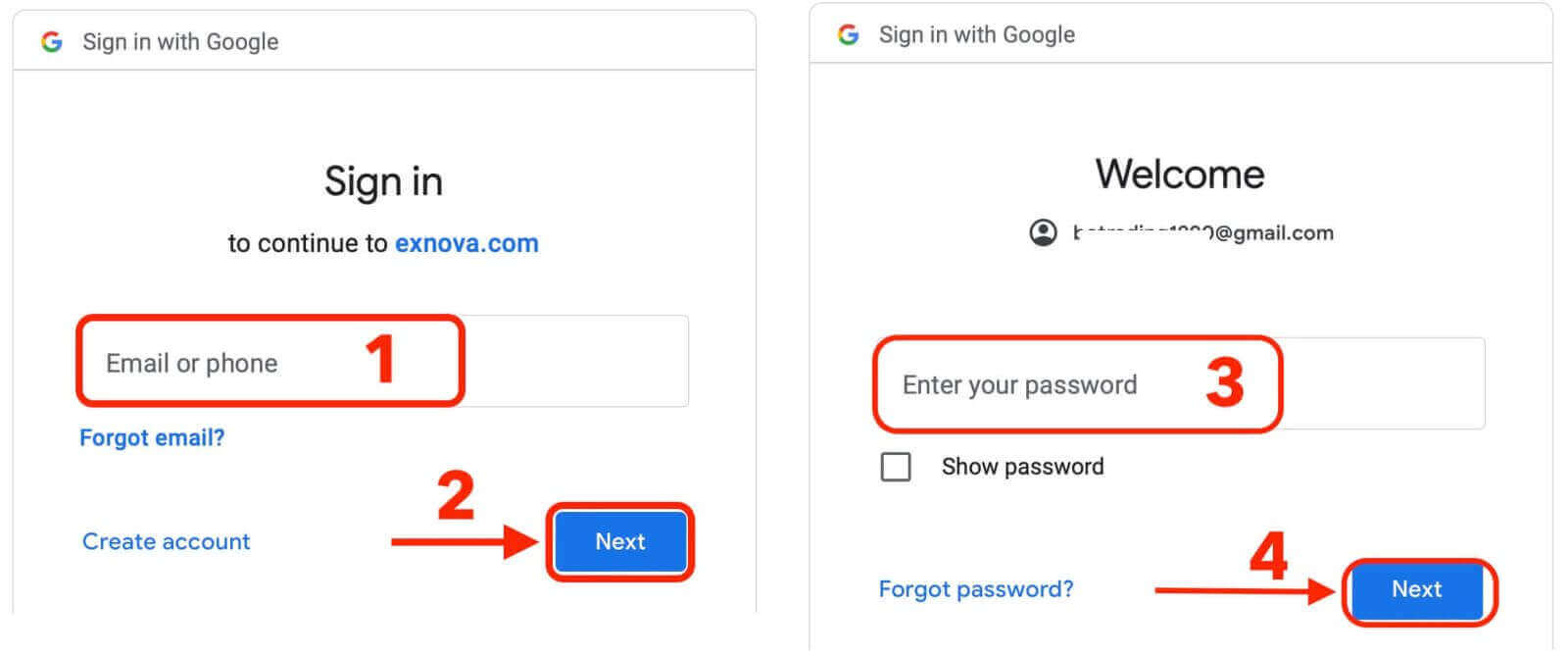
Step 4: You will be redirected to a Google sign-in page where you can enter your existing Google account credentials and click “Next”.
Congratulations! You have successfully registered on Exnova with a Google account. You will then be taken to your Exnova trading.
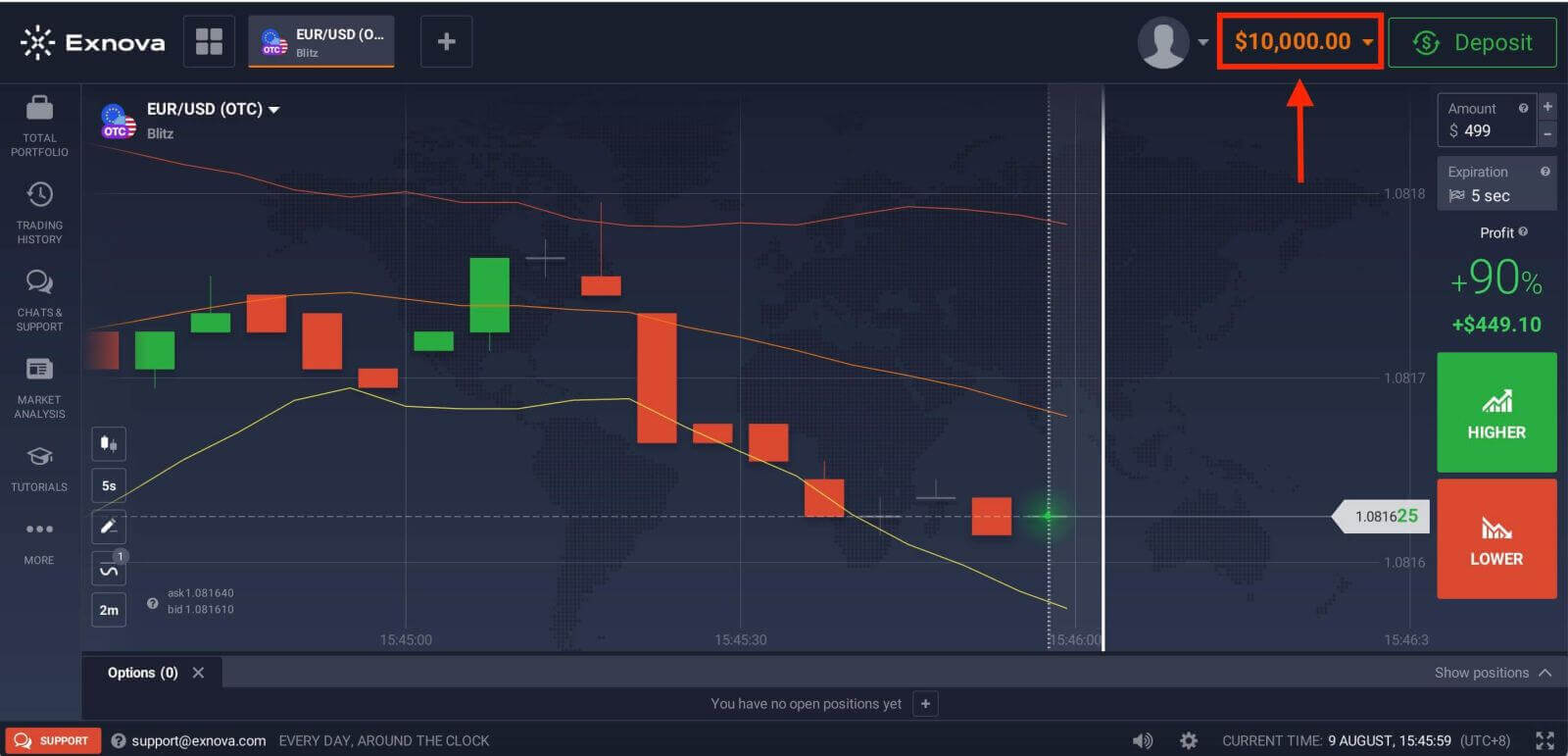
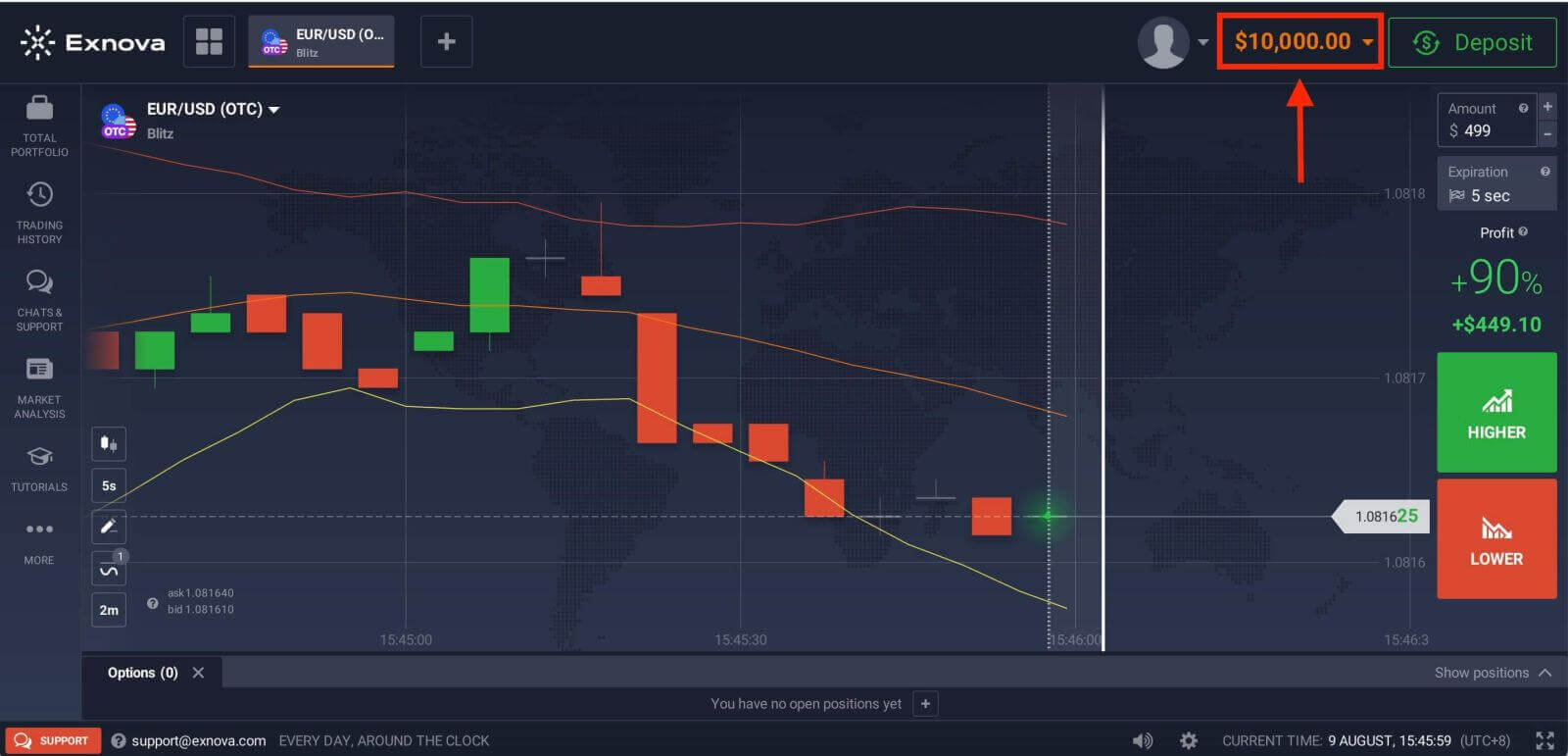
You have $10,000 in Demo Account. It is a tool for you to get familiar with the platform, practice your trading skills on different assets and try out new mechanics on a real-time chart without risks.
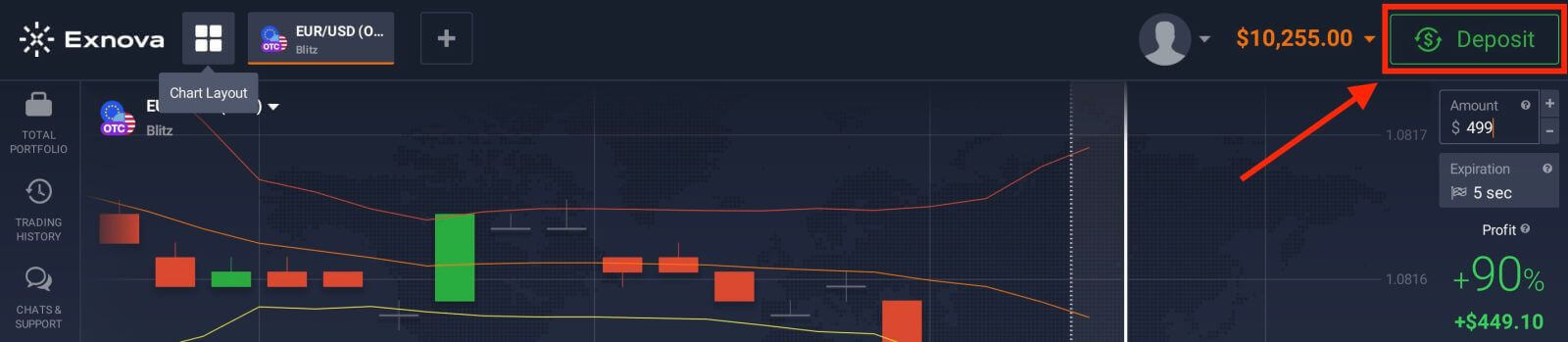
Once you gain confidence in your trading abilities, you can easily switch to a real trading account by clicking the “Deposit” option. This is an exciting and rewarding step in your trading journey as you can deposit funds on Exnova and start trading with real money.
Refer to this article to know more about Deposit: How to Deposit on Exnova
Signing Up for an Exnova Account via Email address
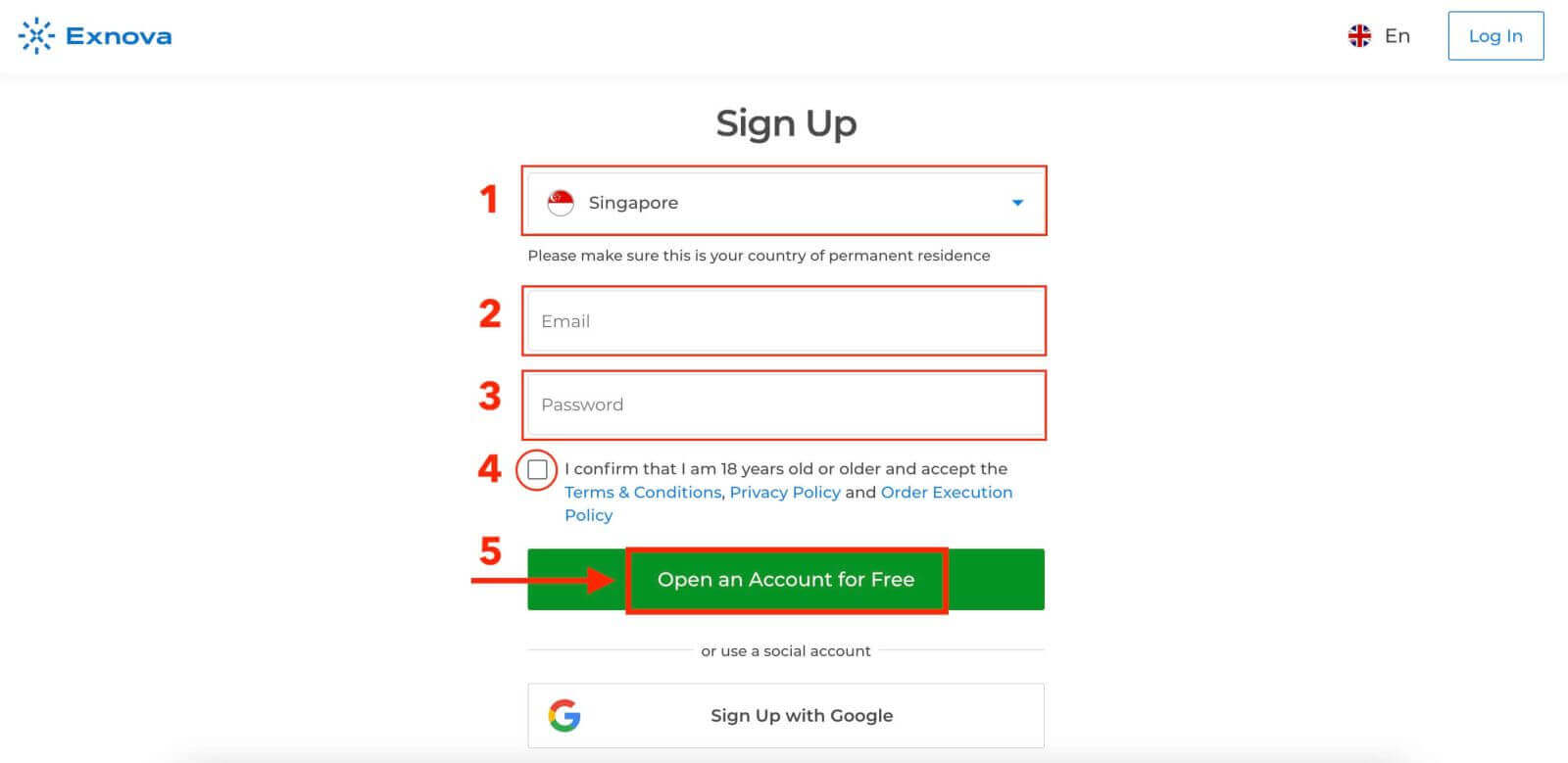
Step 1: Locate the Registration PageOn the Exnova homepage, click the "Create an Account" button. This will direct you to the registration page, where you can initiate the account creation process.
Step 2: Provide Your Personal Information
The registration page will require you to provide some personal information to create your Exnova account. This typically includes:
- Country: Choose your country of permanent residence.
- Email Address: Enter a valid email address.
- Password: Create a strong password.
- Read and agree to the Privacy Policy of Exnova.
- Click "Open an Account for Free".
Step 3: Verify Your Email
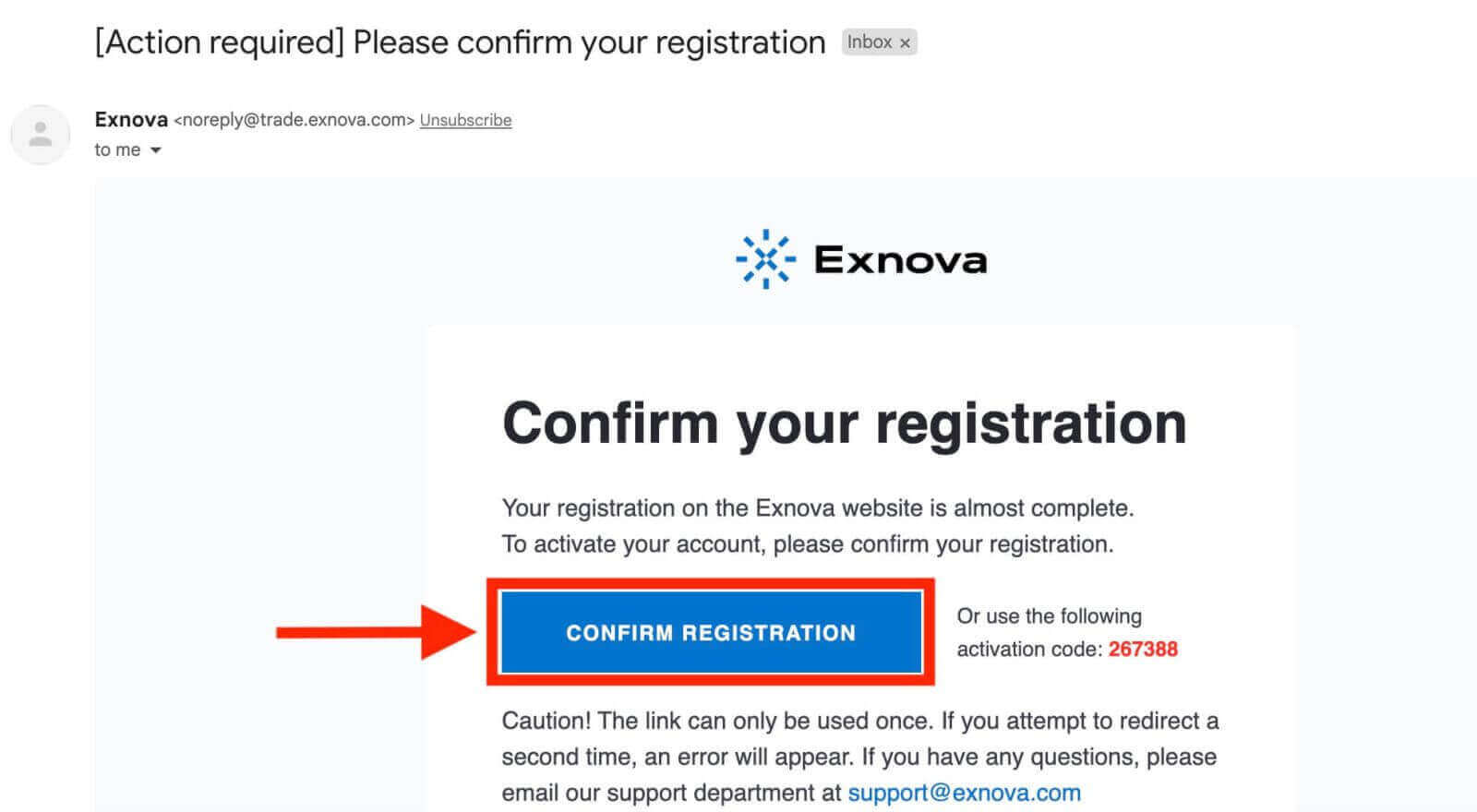
After filling in your personal information, Exnova will send a verification email to the address you provided. Check your inbox and click on the verification link within the email. This step confirms the authenticity of your email address and ensures that you have access to it.
You can now enjoy the benefits of trading on one of the most advanced and user-friendly platforms in the market.
Signing Up for an Exnova Account through the Mobile Web Version
Step 1: Launching your preferred mobile browser. Whether it’s Chrome, Safari, Firefox, or another browser.Step 2: Access the Exnova mobile website. This will direct you to the Exnova mobile website, where you can initiate the account registration process.
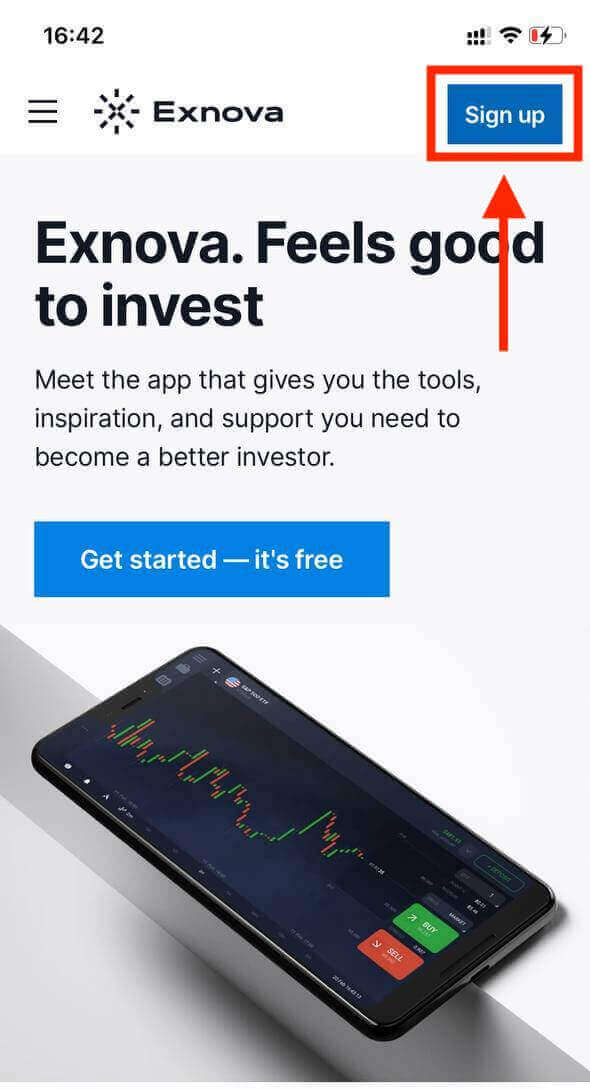
Step 3: Click "Sign up". This will lead you to the registration page, where you can input your information.
Step 4: Providing Your Personal Details. On the registration page, you’ll need to provide essential personal details to create your Exnova account. These typically include:
- Country: Choose your country of permanent residence.
- Email Address: Enter a valid email address.
- Password: Create a strong password.
- Read and agree to the Privacy Policy of Exnova.
- Click the blue "Create an Account" button.
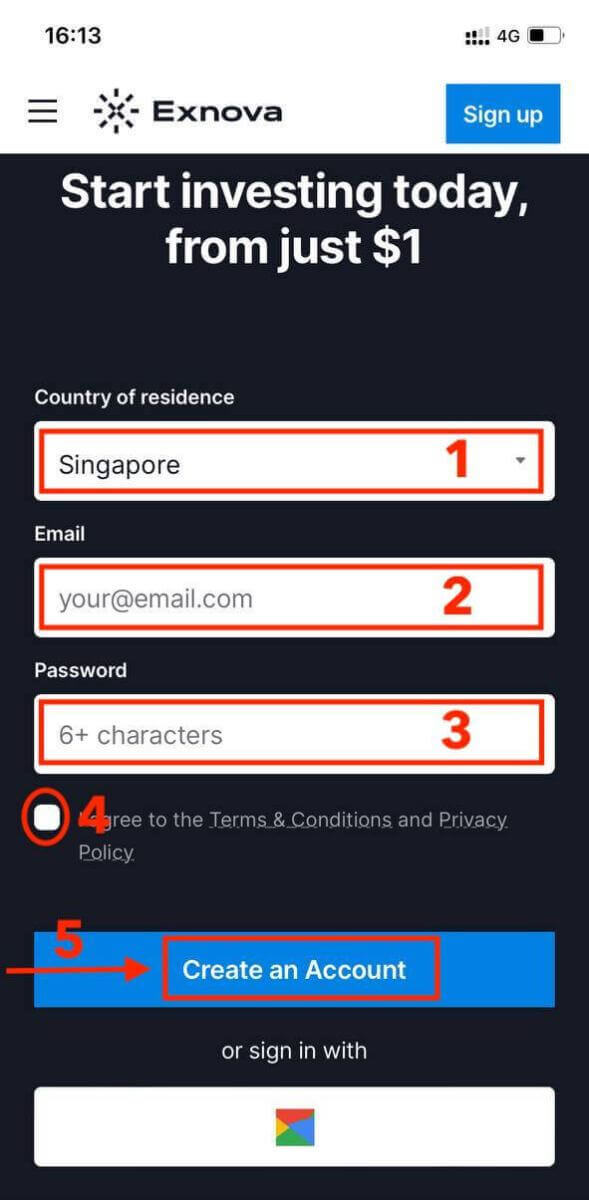
Congratulations! You’ve now registered an Exnova account through the mobile website. Take some time to explore the platform’s functionalities, engage with other users, and maximize your online experience.
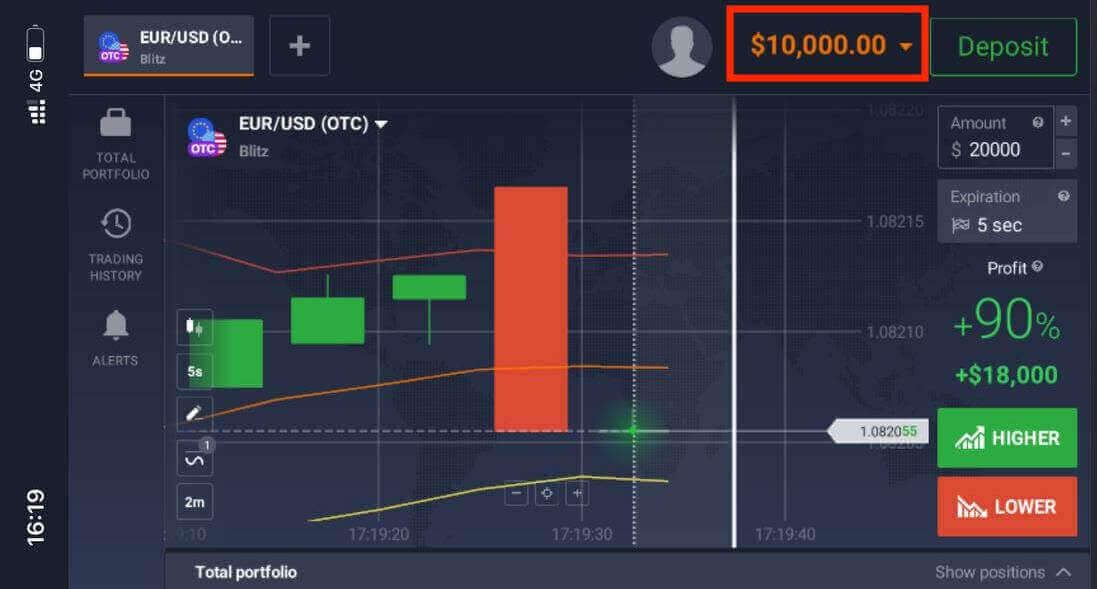
The mobile web version of the trading platform is exactly the same as the regular web version of it. Consequently, there won’t be any problems with trading and transferring funds.
Account Registration via the Exnova Android App
Exnova Android app is a convenient and powerful trading platform that lets you trade anytime and anywhere. We will guide you through the process of downloading and registering an account on Exnova Android app, which is one of the easiest ways to trade on the move.
Step 1: Download the app
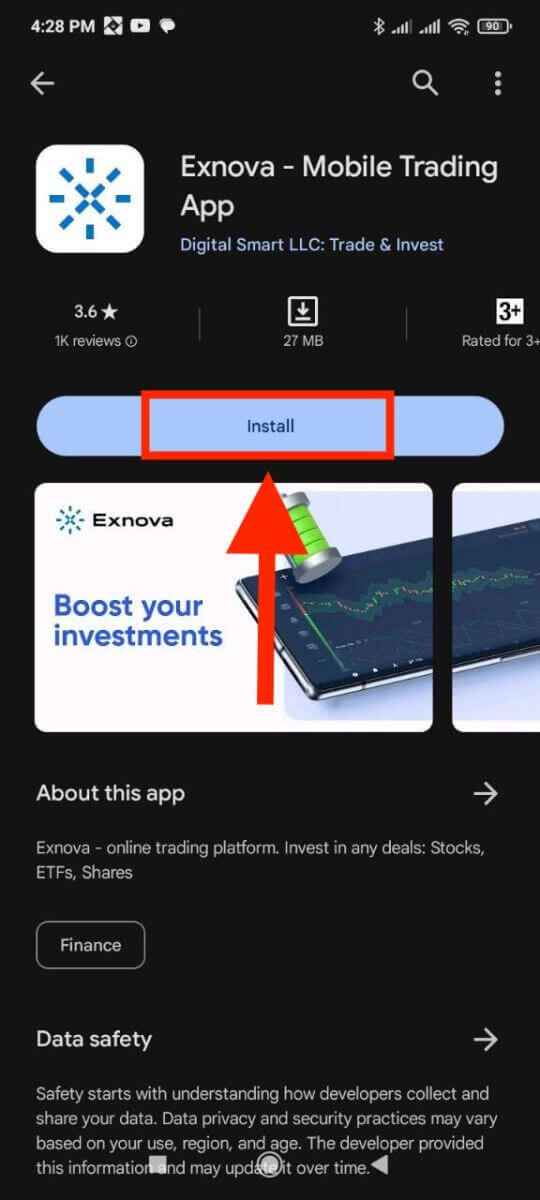
To download the Exnova Android app, you can go to the Google Play Store and search for "Exnova – Mobile Trading App" or tap here. Then, tap on the "Install" button situated prominently on the app’s page.
Step 2: Open the app
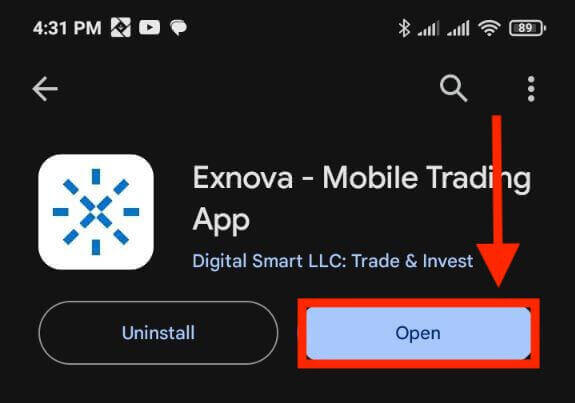
Once the installation is complete, the "Install" button will transform into an "Open" button. Tap on "Open" to launch the Exnova app for the first time.
Step 3: Sign up
You will see a registration form where you can enter your email, password and select your country. You also need to agree to the terms and conditions and privacy policy by checking the box. Alternatively, you can sign up with your Google account by tapping on the corresponding buttons.
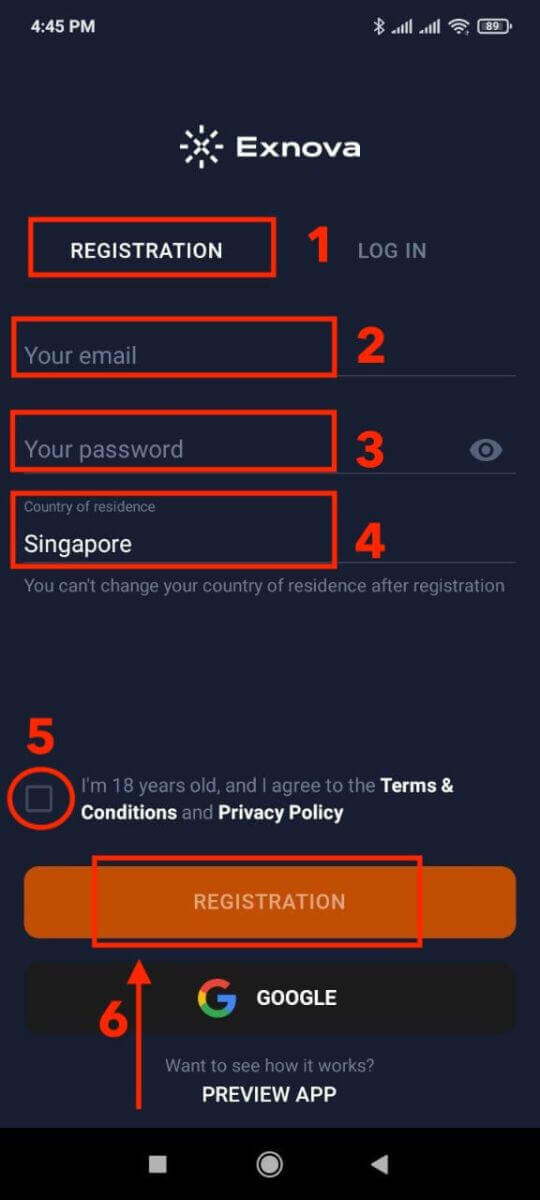
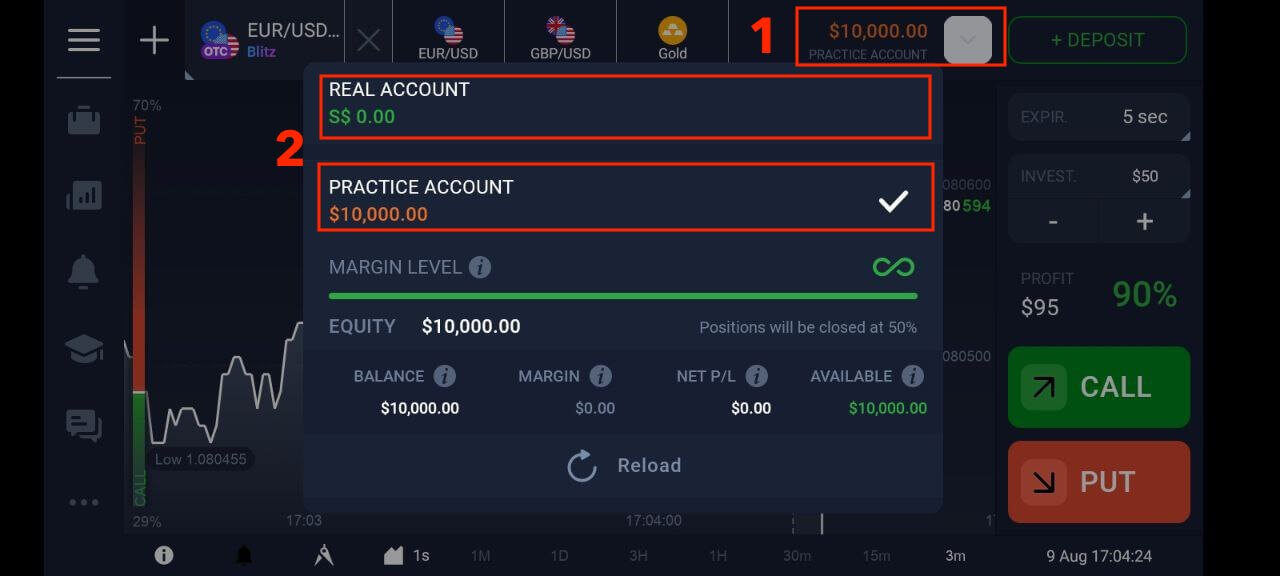
Congratulations, you have successfully created your Exnova account. You can start exploring the features of the Exnova Android app. You can switch between a free demo account and a real account by tapping on the balance icon at the top right corner. You can also choose from over 250 assets to trade, view charts and indicators, set alerts, and manage your trades.
Frequently Asked Questions (FAQ)
How can I secure my account?
To secure your account, use two-step authentication. Each time you log in to the platform, the system will prompt you to enter a special code sent to your email address. You can activate this in Settings.
How do I switch between a practice account and a real account?
To switch between accounts, click on your balance in the upper right corner. Make sure that you are in the trading room. The panel that opens displays your accounts: your real account and your practice account. Click on the account to make it active. Now you can use it to trade.
How do I top up my practice account?
You can always top up your practice account for free if your balance drops below $10,000. You must first select this account.
How much money can I make on the practice account?
You cannot profit from the trades you make on a practice account. On a practice account, you receive virtual funds and make virtual trades. It is designed for training purposes only. To trade with real money, you need to deposit funds into a real account.
Logging into Exnova: A Step-by-Step Guide
Logging into Exnova via Google
Exnova recognizes the convenience of seamless access for its users. Leveraging your Google Account, a widely used and secure authentication method allows for swift and hassle-free entry into the Exnova platform.This guide elucidates the steps to effortlessly log in to Exnova using your Google credentials.
Step 1: Accessing the Exnova Login Page
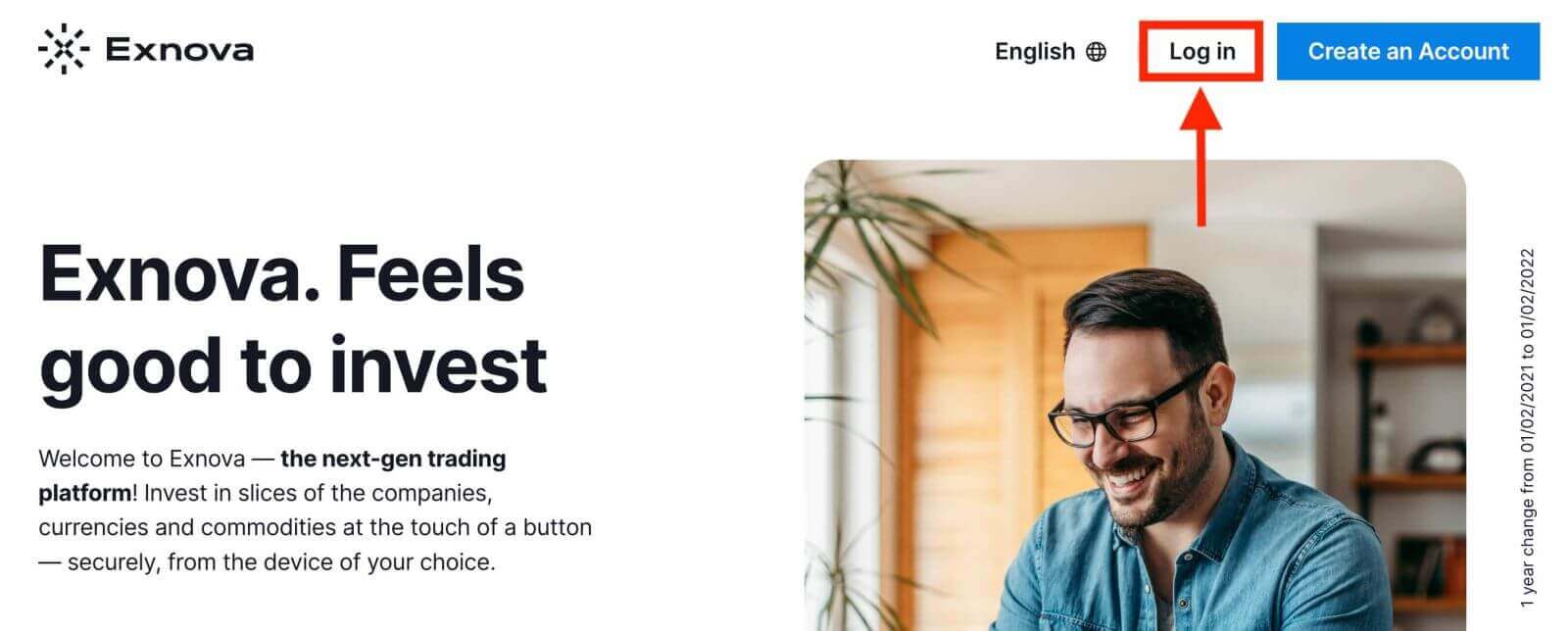
Go to the Exnova website. Click the "Log in" button on the top right corner of the page.
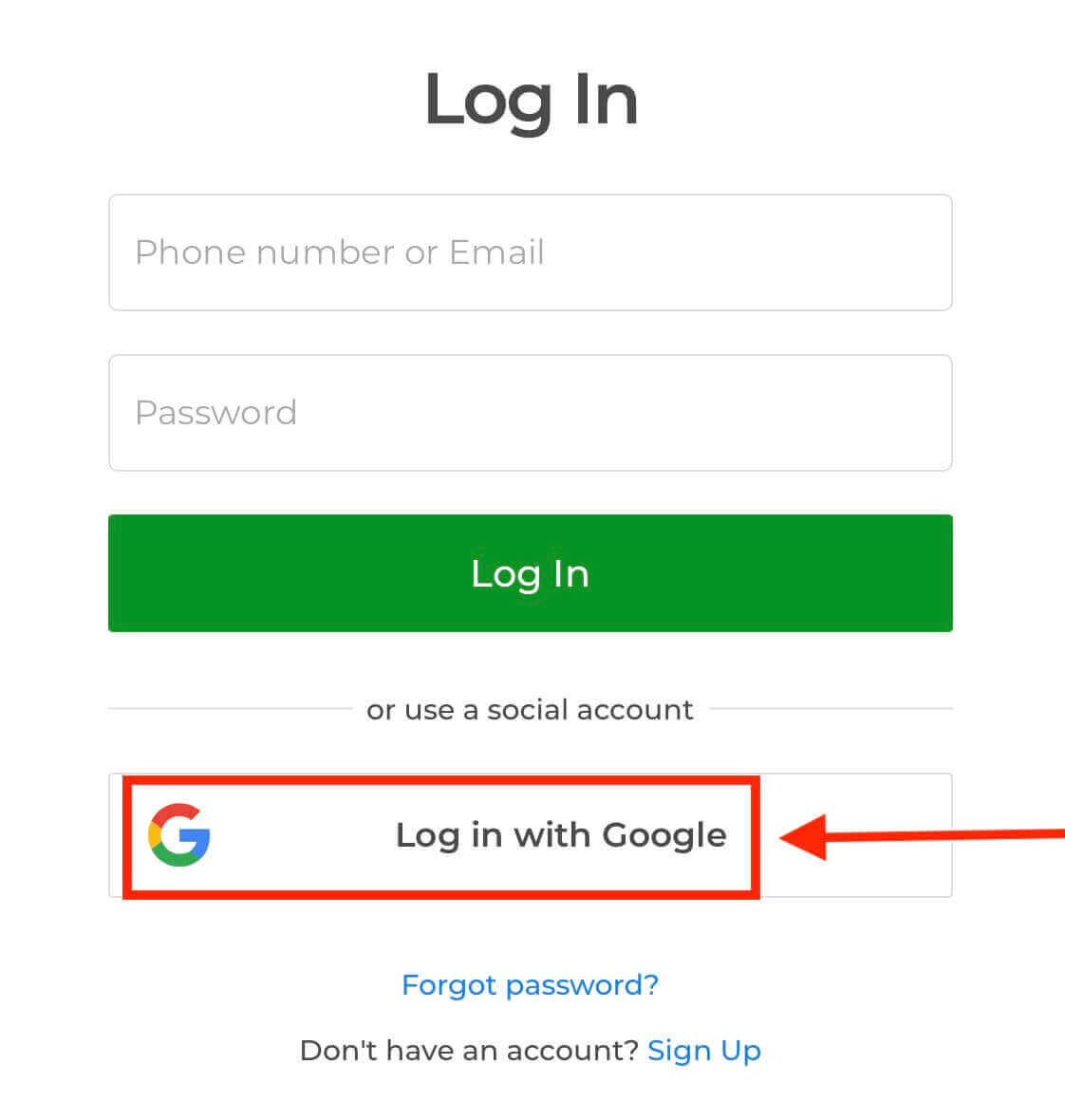
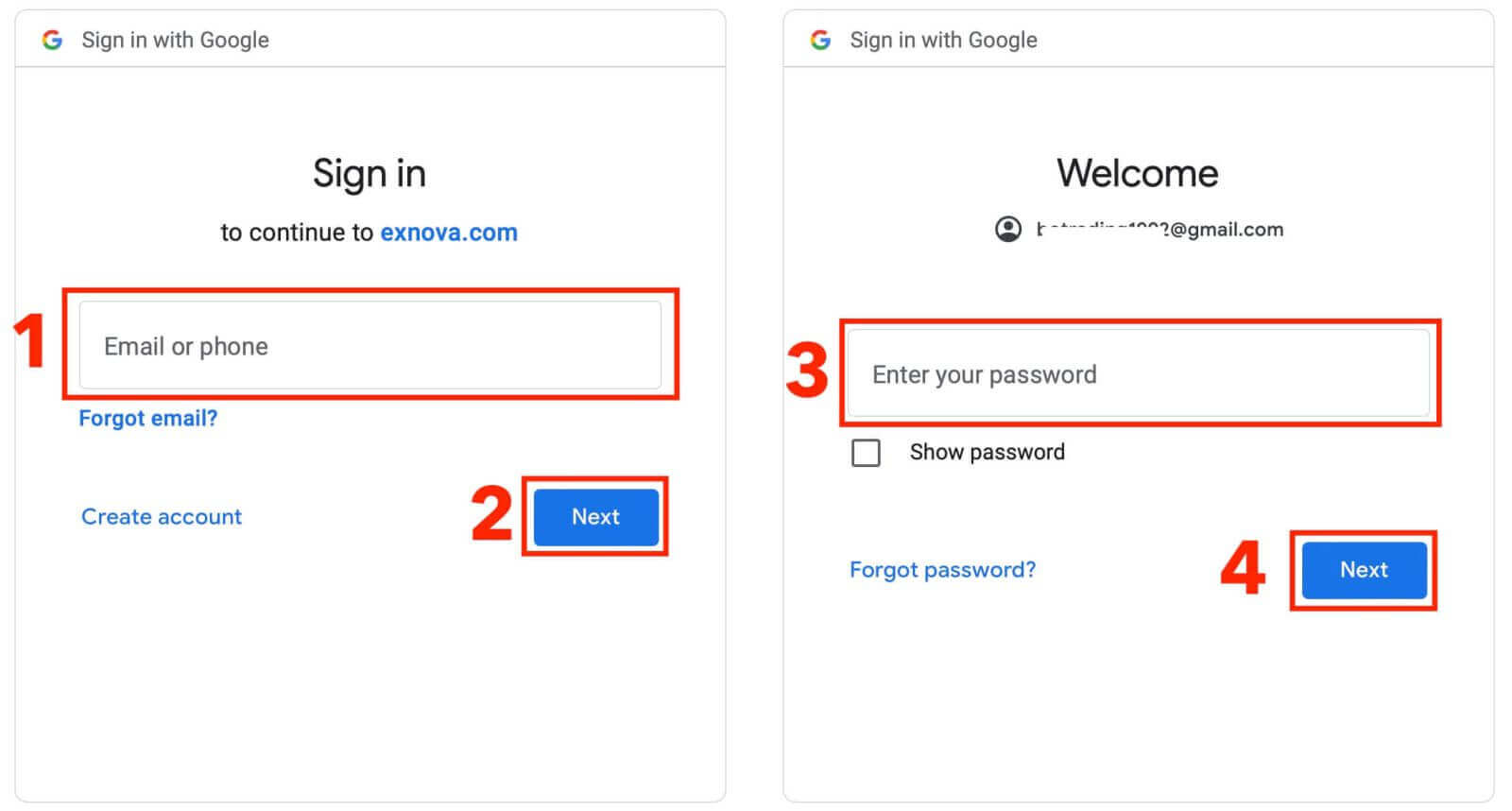
Step 3: Enter your phone number or email address and click “Next”. Then enter the password for your Google account and click “Next”.
After that, you will be taken to your personal Exnova account. You have $10,000 in Demo Account, you can also trade on a real account after depositing.
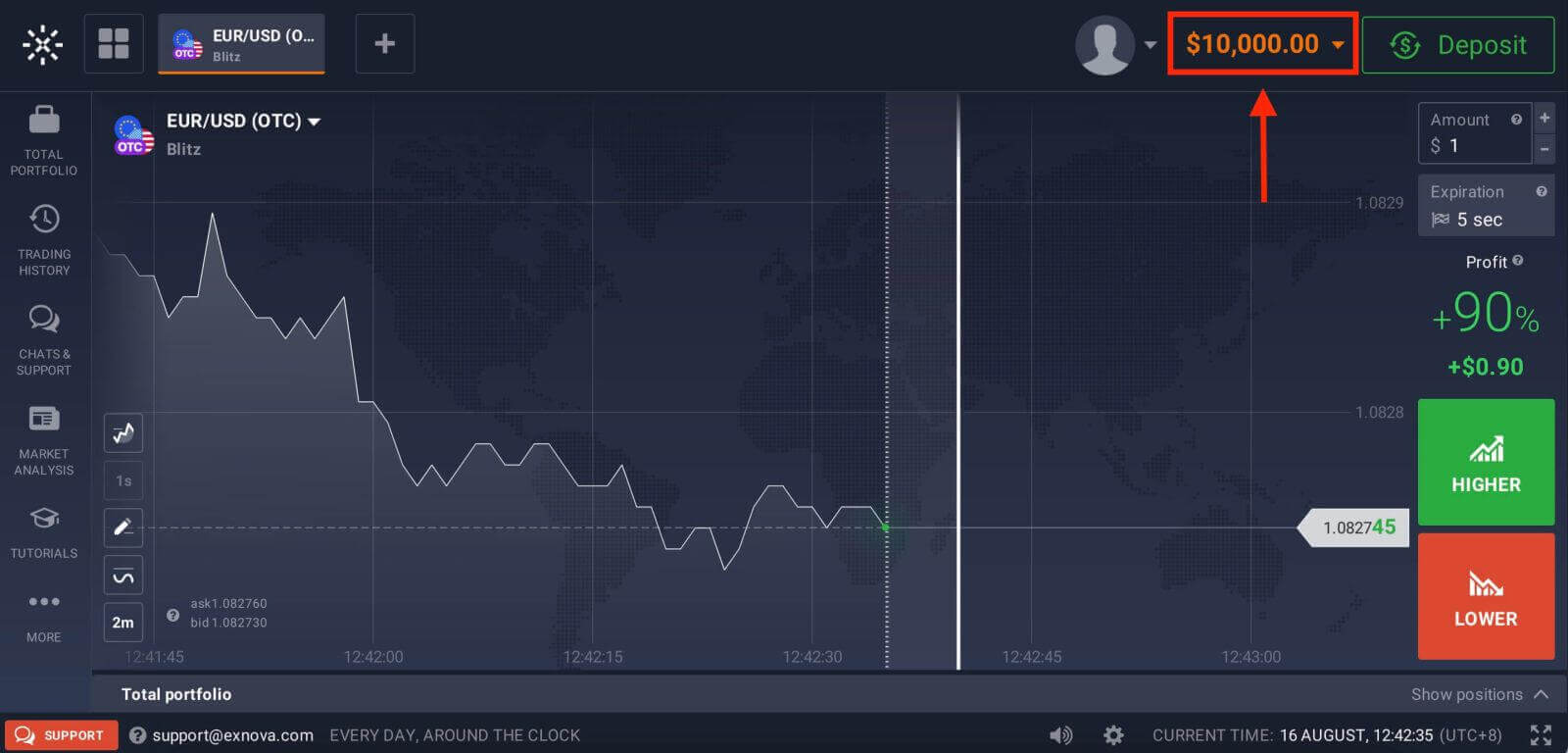
Refer to this article to know more about Deposit: How to Deposit in Exnova
Logging into Exnova via Email
Step 1: Accessing the Exnova Login Page
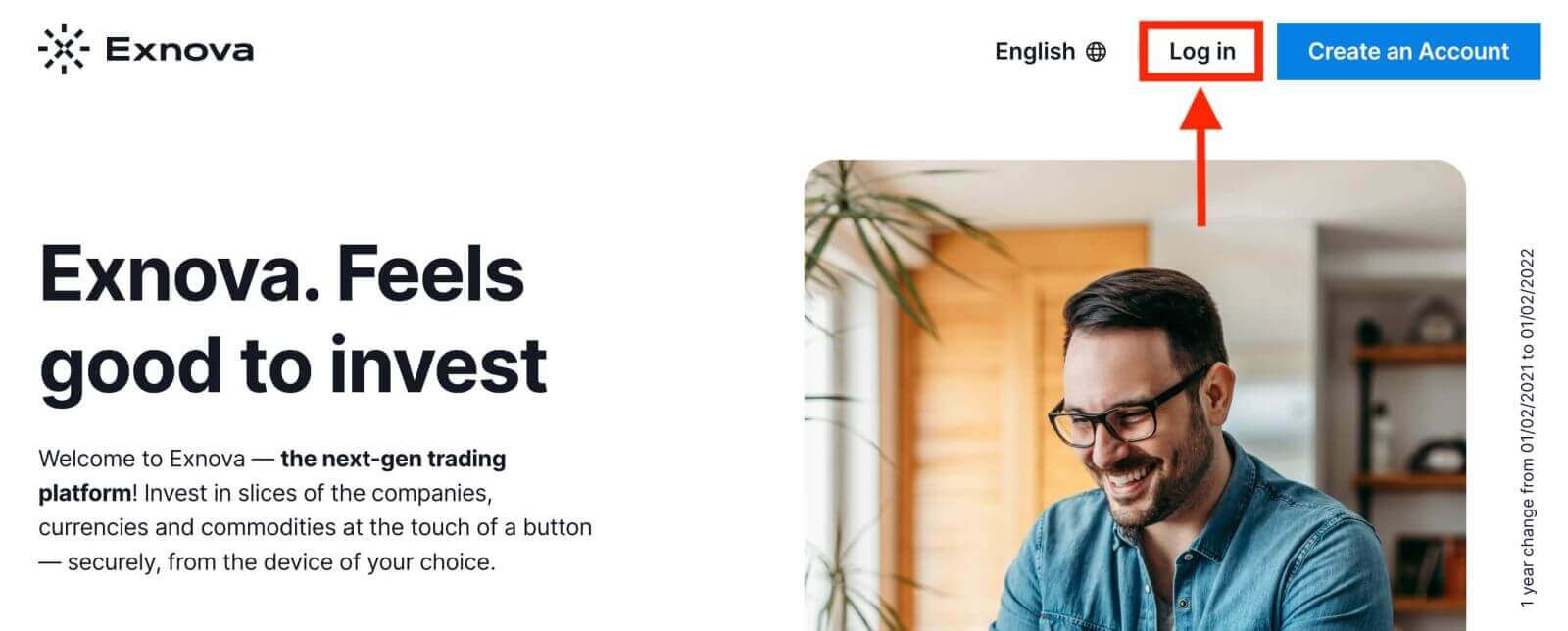
Go to the Exnova website. Click the "Log in" button on the top right corner of the page.
Step 2: Providing User Credentials
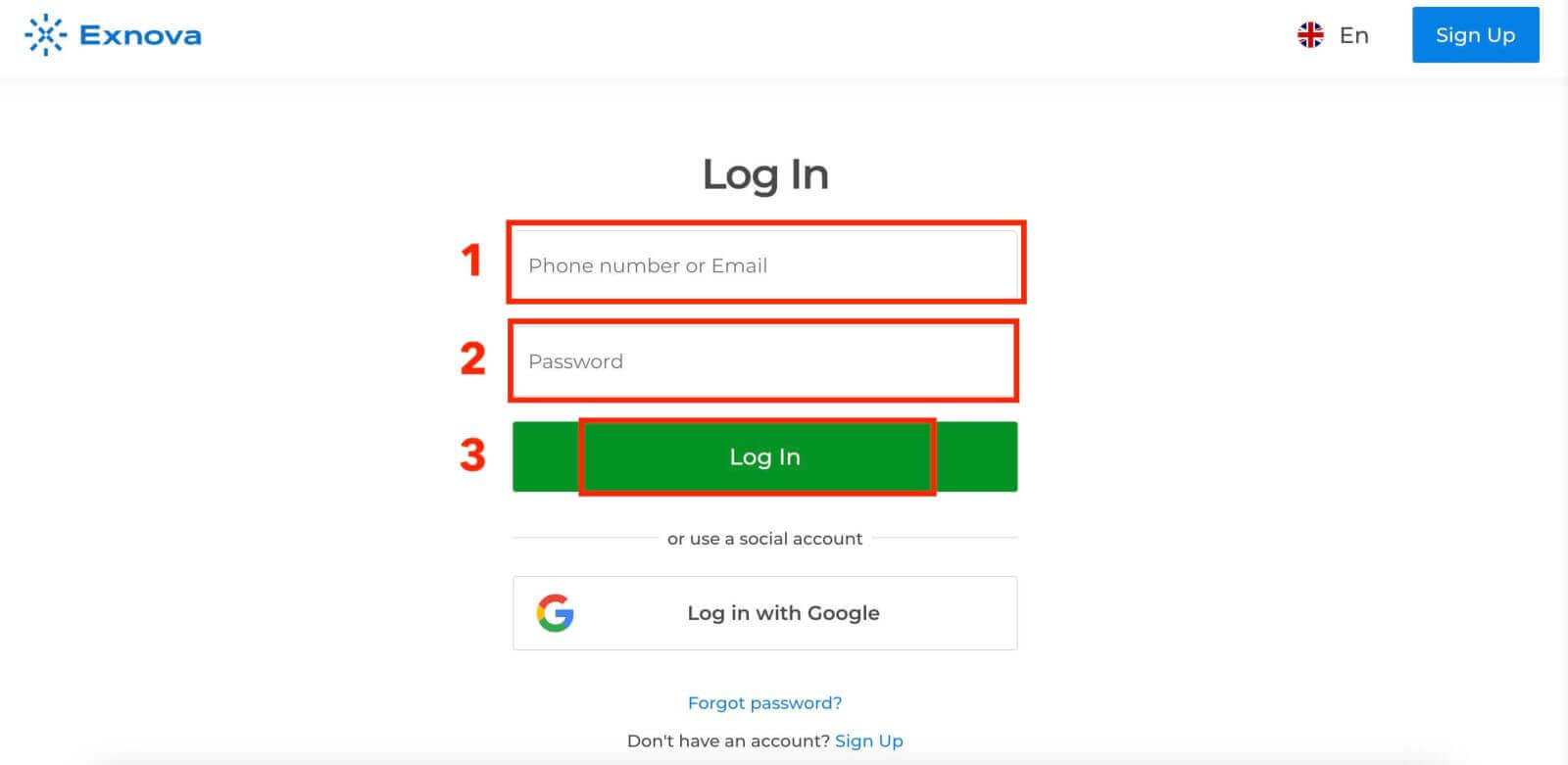
Upon reaching the login page, you will be prompted to enter your user credentials. These credentials typically include your email address and password. Ensure that you accurately input this information to prevent any login issues.
Step 3: Navigating the Dashboard
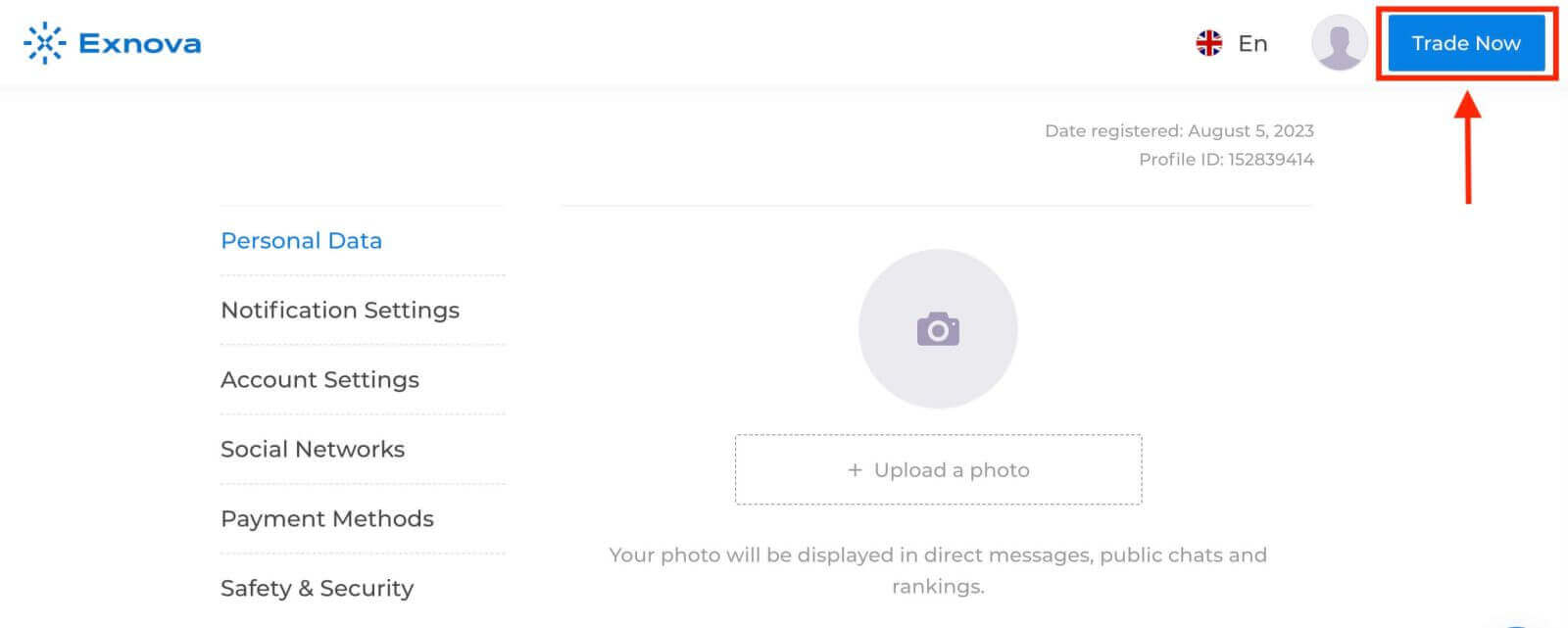
Exnova will then validate your information and grant access to your account’s dashboard. This is the central hub where you can access various features, services, and settings. Familiarize yourself with the dashboard layout to make the most of your Exnova experience. Click "Trade Now" to start trading.
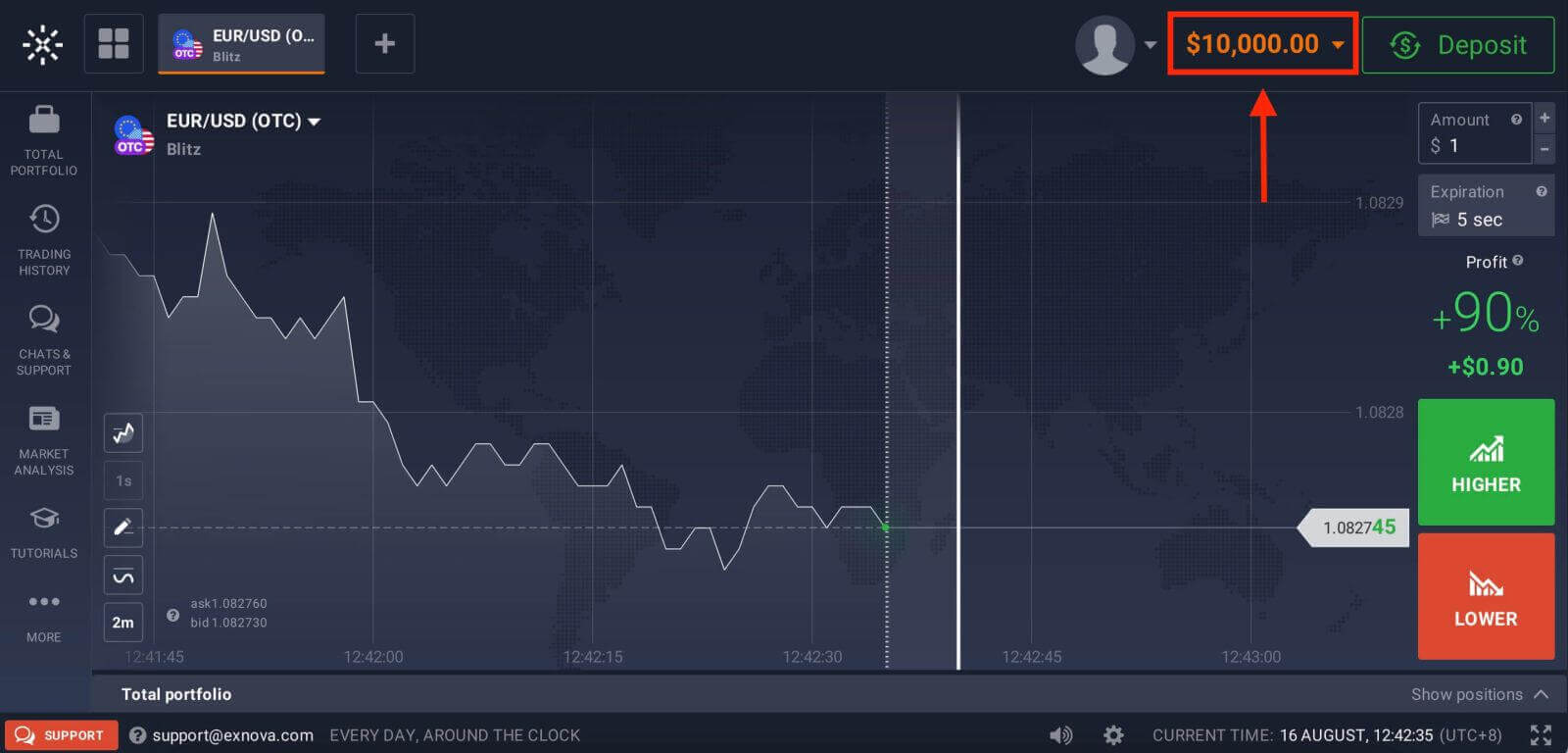
You have $10,000 in Demo Account, you can also trade on a real account after depositing.
Logging into the Mobile Web Version of Exnova
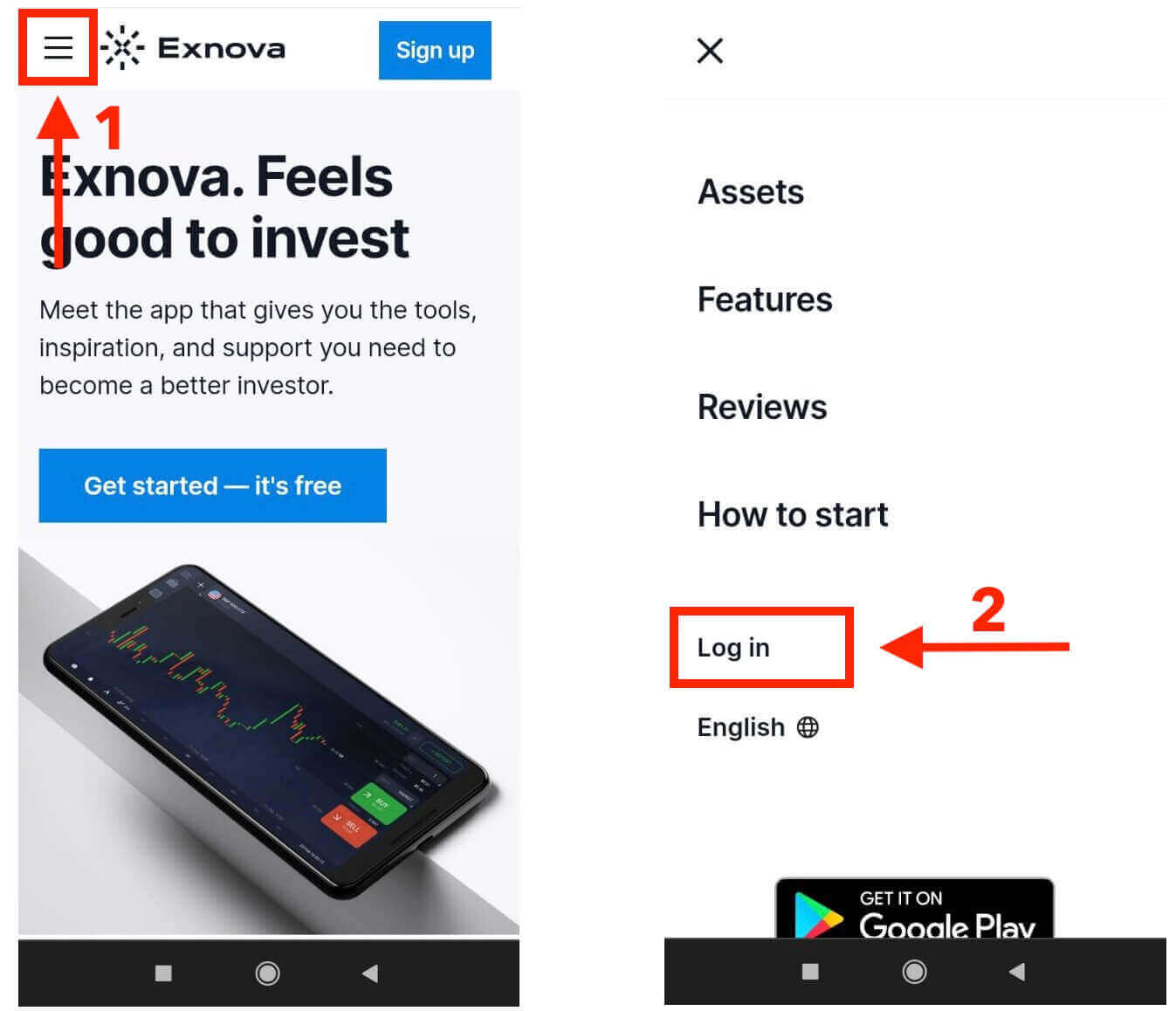
Exnova recognizes the ubiquity of mobile devices and has optimized its web version for seamless access on-the-go. This guide elucidates the steps to effortlessly log in to Exnova using the mobile web version, ensuring that users can access the platform’s features and functionalities with ease, anytime and anywhere.1. Begin by launching your preferred web browser and navigating to the Exnova website. On the Exnova homepage, locate "Login".
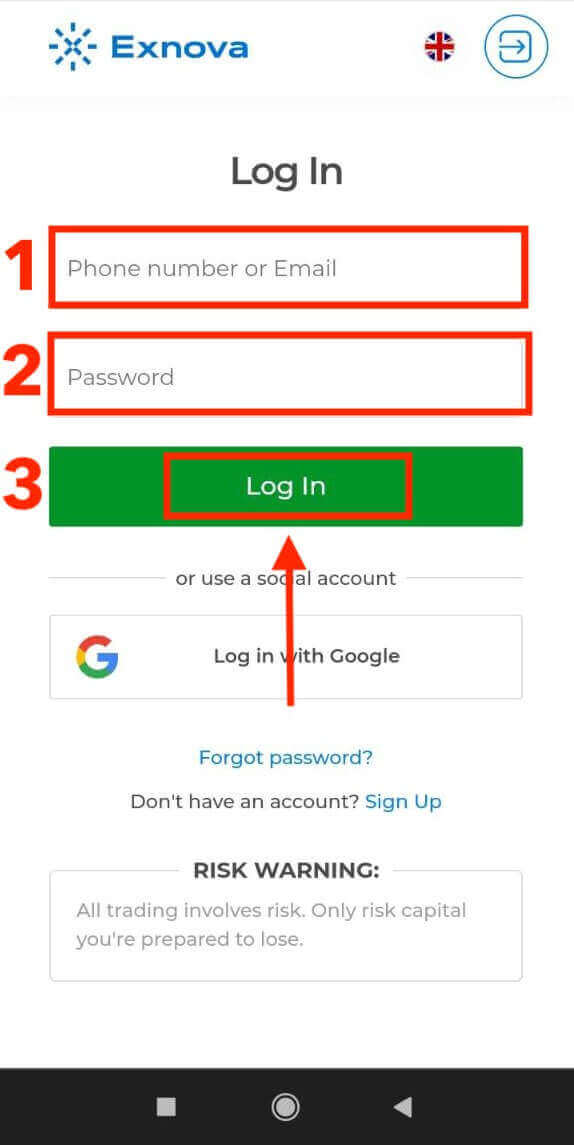
2. Enter your email and password and then tap on the “Log in” button. You can also use your Google account to log in. Exnova will validate your information and grant you access to your account’s dashboard.
Upon successful login, you will be directed to the mobile-friendly dashboard. This intuitive interface allows you to access various features and services with ease. Familiarize yourself with the layout to navigate effortlessly. Tap the "person" icon and "Trade Now" to start trading.
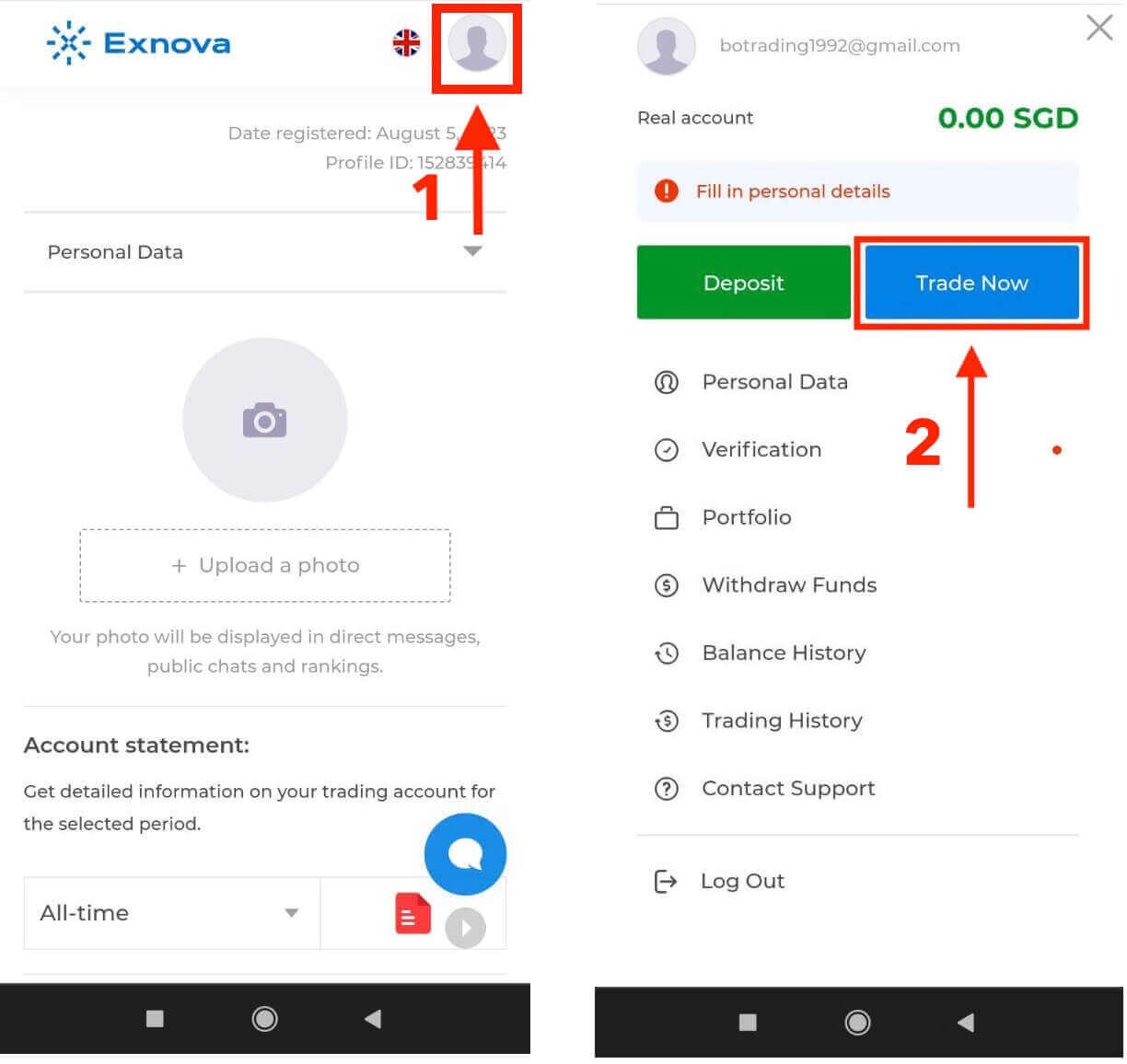
Here you are! Now you are able to trade from the mobile web version of the platform. The mobile web version of the trading platform is exactly the same as the regular web version of it. Consequently, there won’t be any problems with trading and transferring funds. You have $10,000 in Demo Account to trade on the platform.
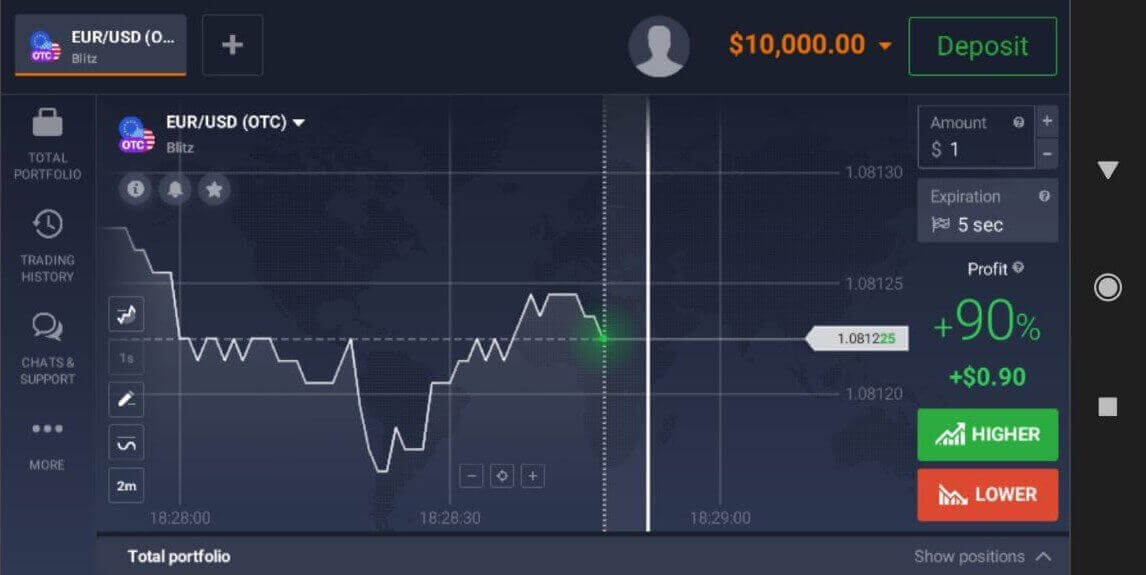
Logging into the Exnova Android App
The Exnova Android app allows users to access its features from their mobile devices with ease. This guide explains how to log in to the Exnova app on Android smoothly and securely, for users who are on the go.Step 1: Accessing the Google Play Store
Navigating to the Google Play Store. This is where you can download and install the Exnova app.
Step 2: Searching and Installing the Exnova App
In the Google Play Store’s search bar, type "Exnova" and tap the search icon. Locate the Exnova app from the search results and click on it. Then, tap the "Install" button to initiate the download and installation process.
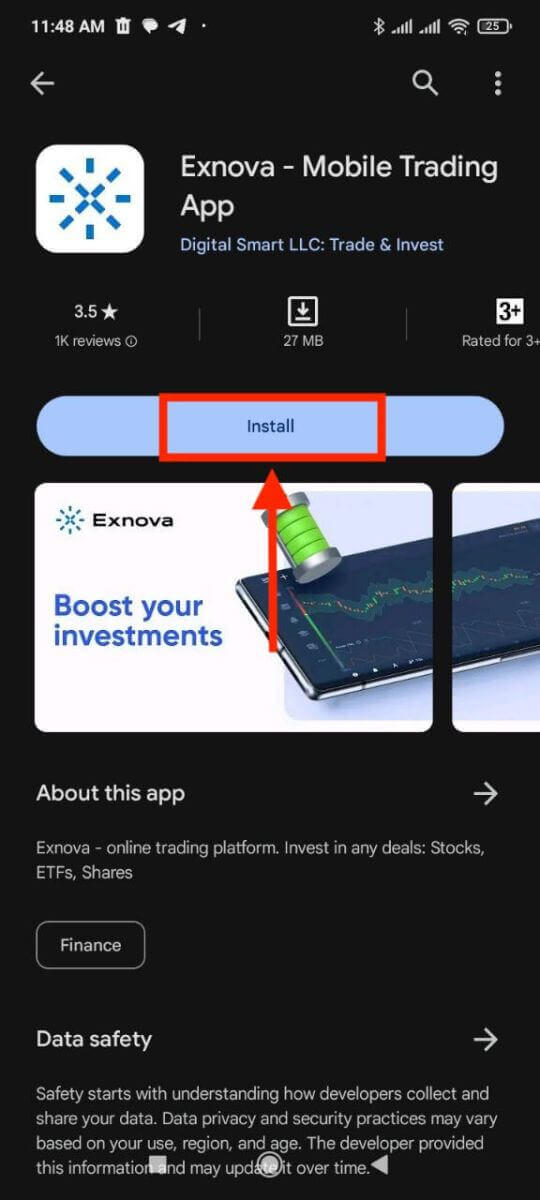
Step 3: Launching the Exnova App
After the app is successfully installed, tap the "Open" button to launch the Exnova app on your Android device.
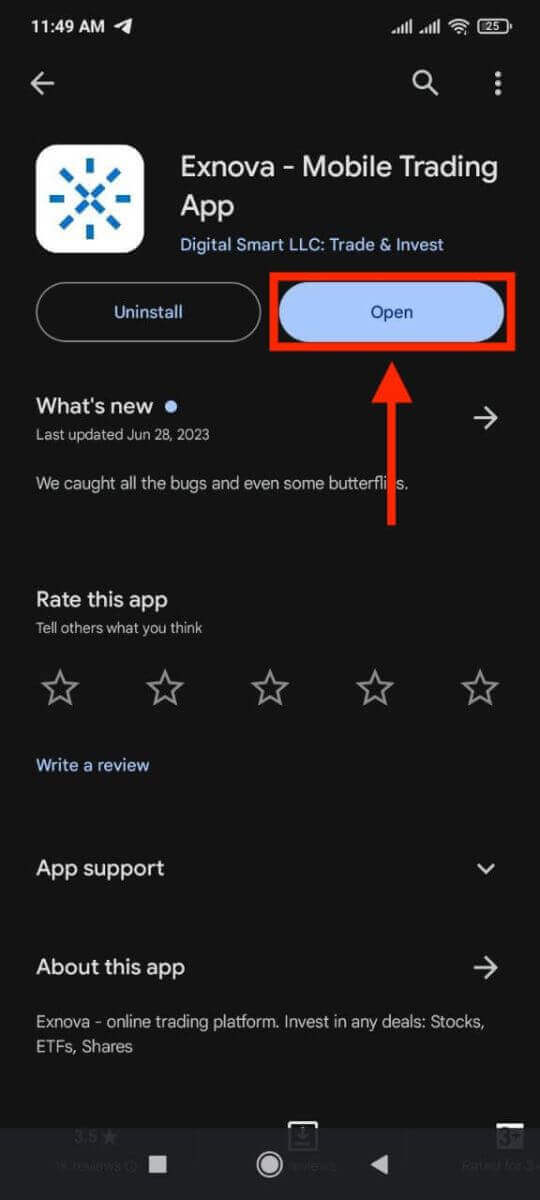
Step 4: Navigating to the Login Screen
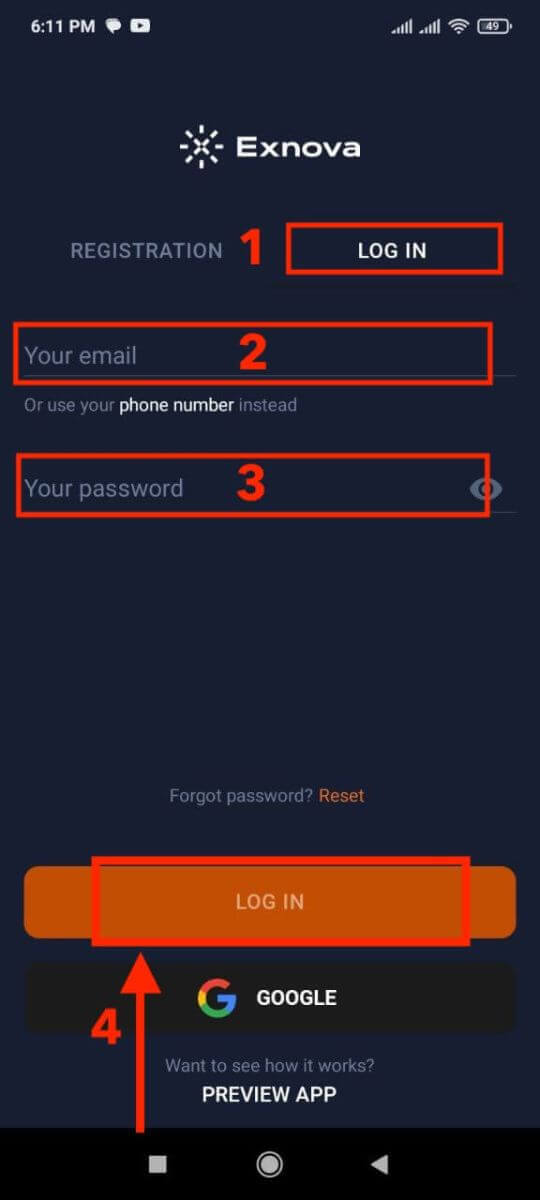
Upon launching the app, you will be presented with the app’s welcome screen. Locate and tap the "LOG IN" option to proceed to the login screen. On the login screen, enter your registered email and your password in the designated fields.
Step 5: Exploring the App Interface
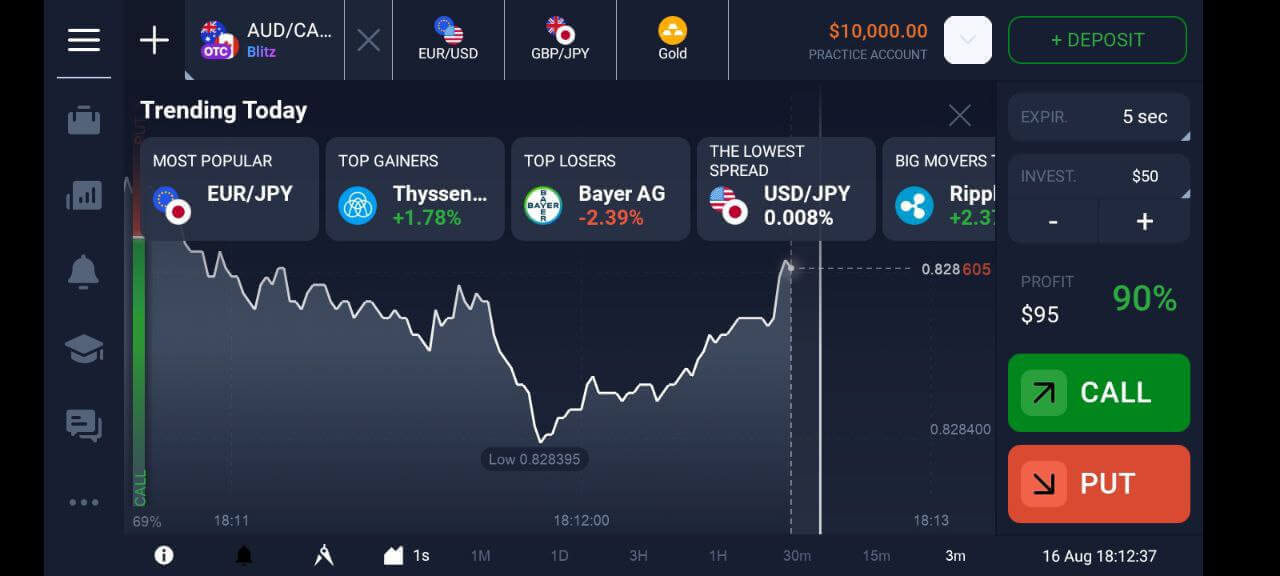
Upon successful login, you will be directed to the Trading interface. Take time to familiarize yourself with the interface, which provides access to various features, tools, and services.
Two-Factor Authentication (2FA) on Exnova Login
Exnova might incorporate an extra security measure, like two-factor authentication (2FA). If 2FA is activated for your account, a unique code will be sent to your email. Input this code when requested to finalize the authentication procedure.
Exnova prioritizes the security of its users and presents a strong Two-Factor Authentication (2FA) mechanism, which adds an extra level of safeguarding to user accounts. This system is devised to thwart unauthorized entry into your Exnova account, ensuring exclusive access for you and instilling confidence as you engage in trading activities.
To set up 2FA on Exnova, follow these steps:
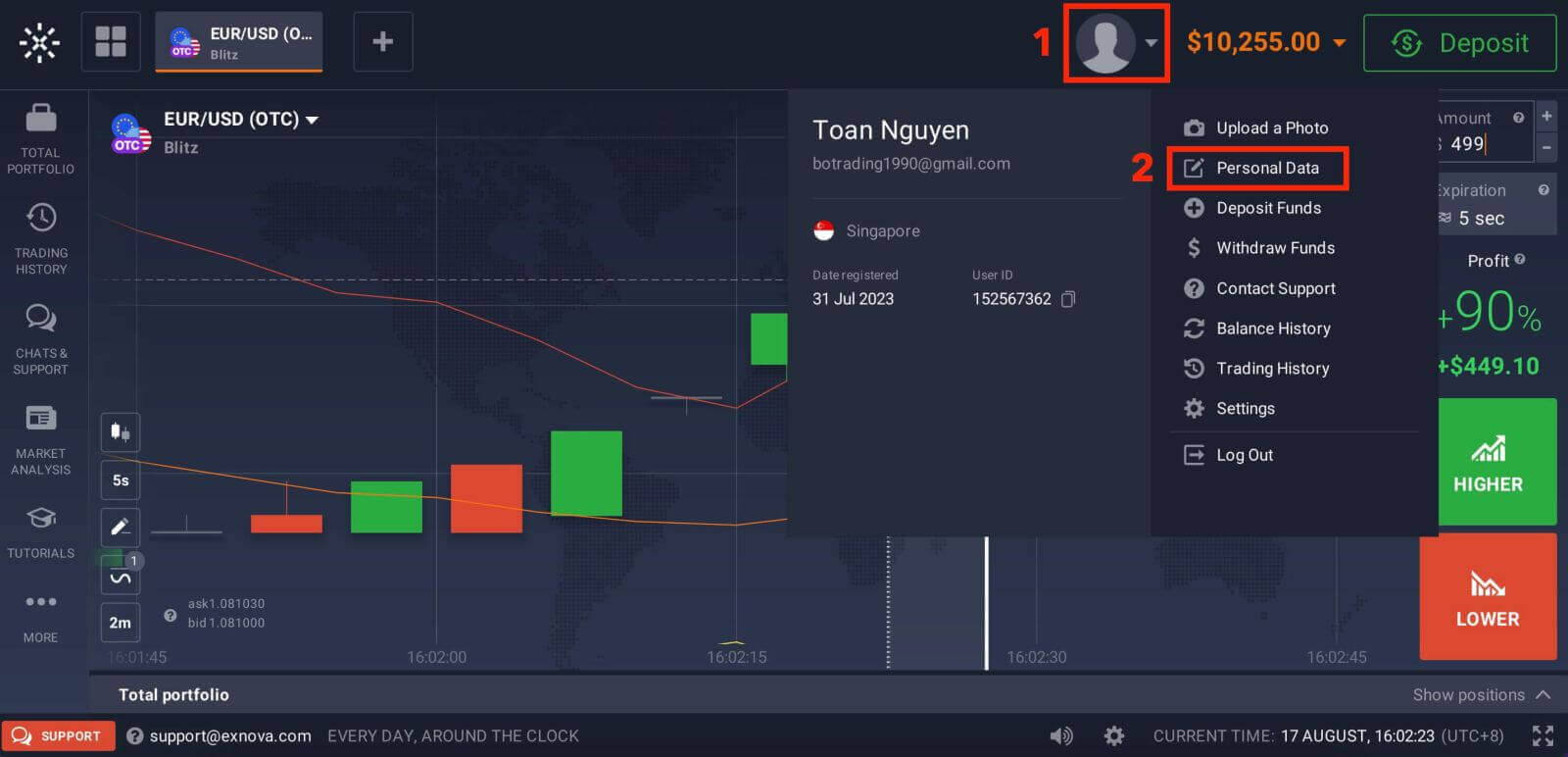
1. After logging in to your Exnova account, navigate to the account settings section. Typically, you can find this by clicking on your profile picture and clicking "Personal Data" from the dropdown menu.
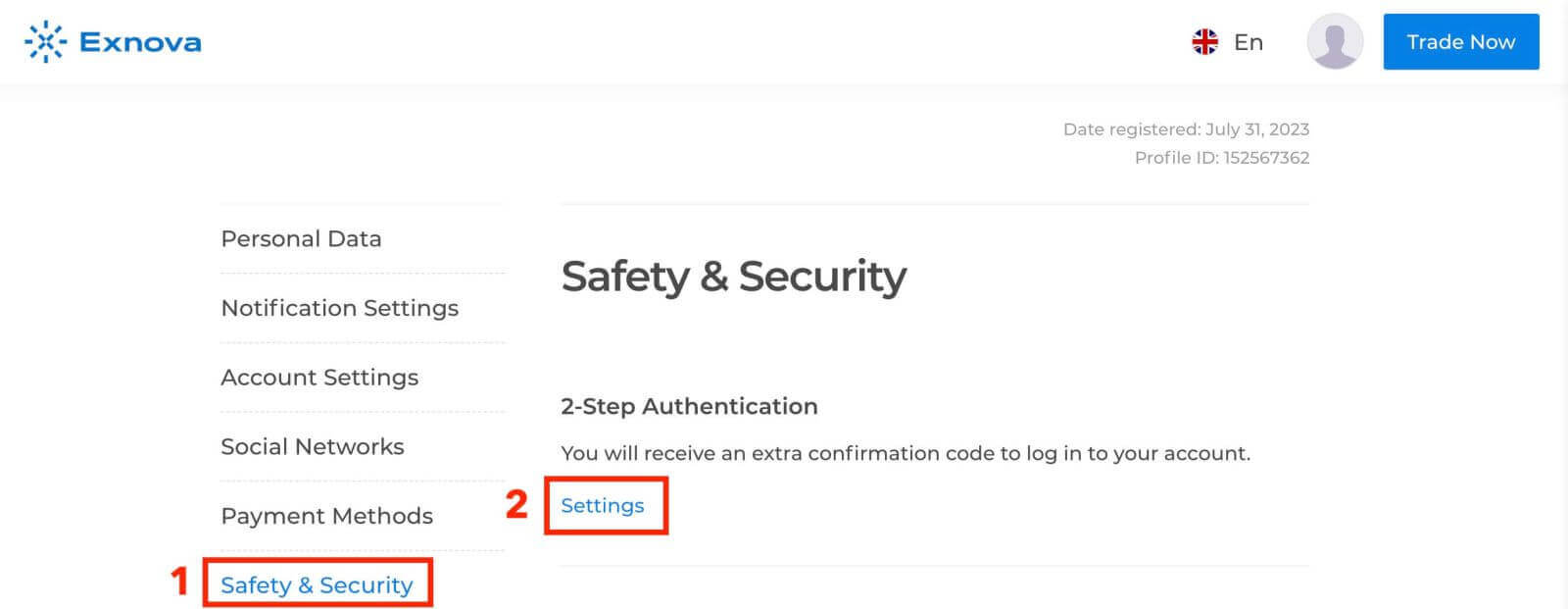
2. Click on the "Safety Security" tab in the main menu. Then, click "Settings".
3. Follow the instructions provided to complete the process.
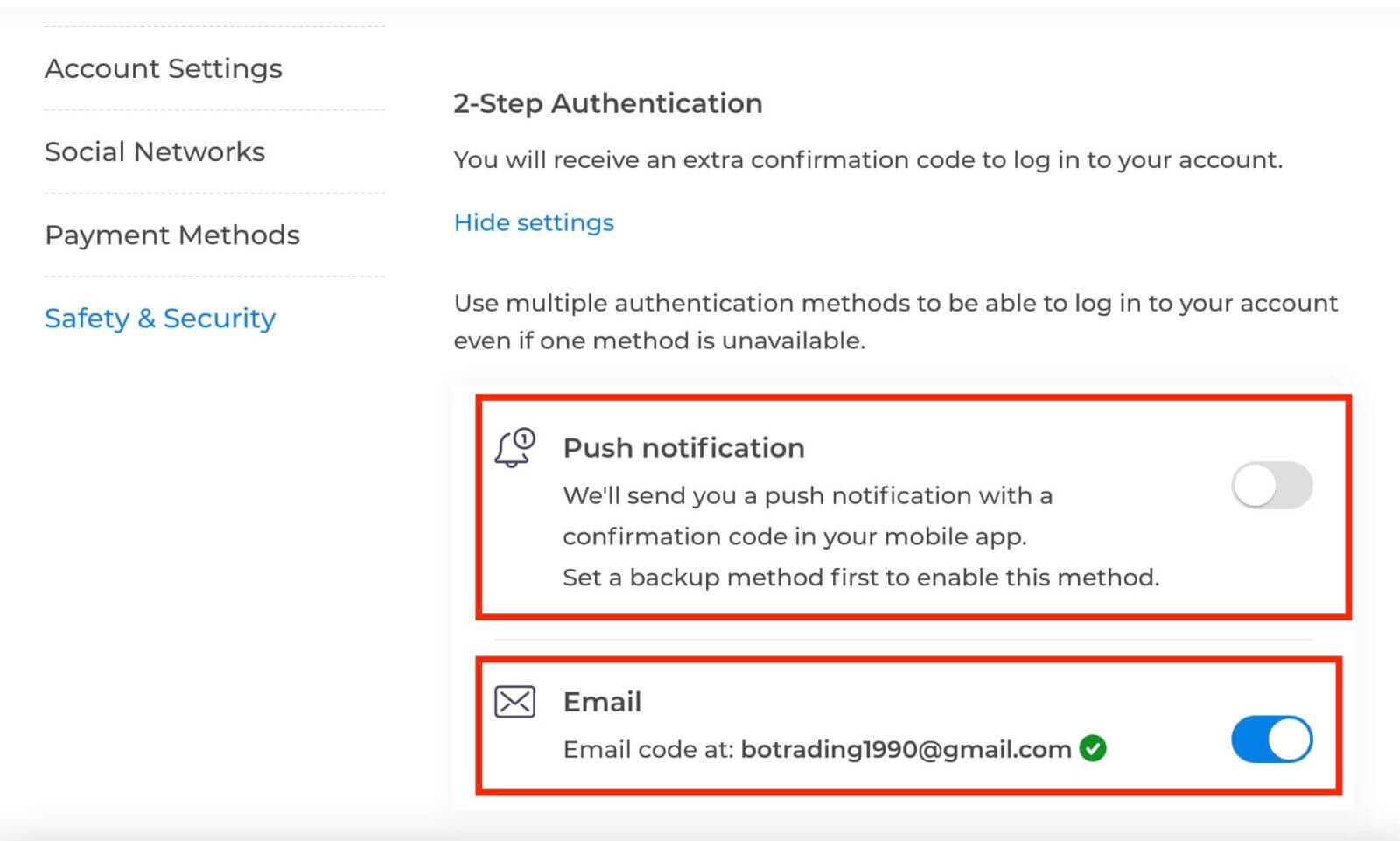
Two-factor authentication (2FA) is an essential security feature on Exnova. Once you have set up 2FA on your Exnova account, you will be required to enter a unique verification code every time you log in.
Password Recovery from Exnova account
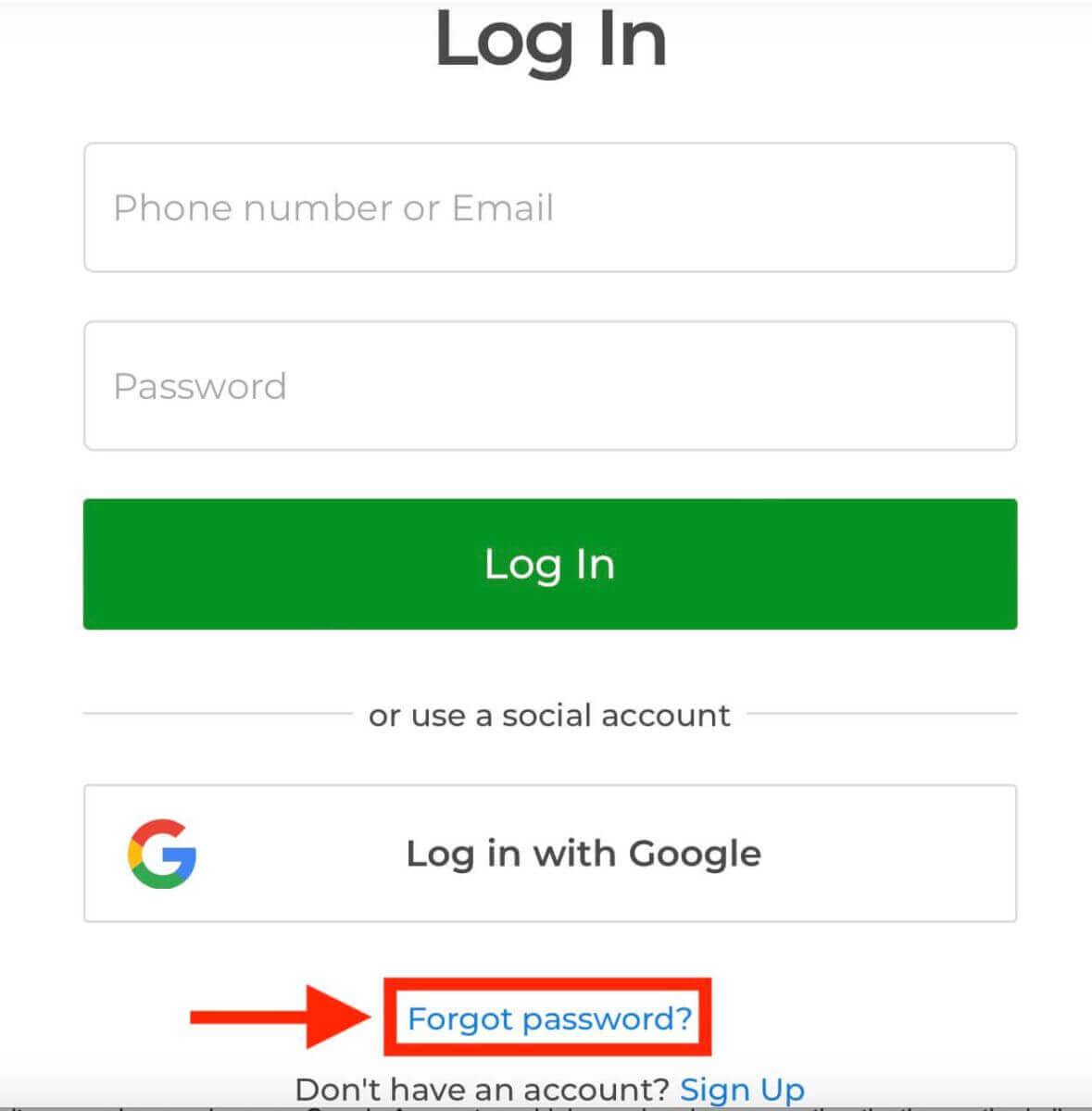
Losing access to your Exnova account due to a forgotten password can be frustrating. However, Exnova understands the importance of maintaining a smooth user experience and offers a reliable password recovery process. This guide outlines the steps to recover your Exnova account password, ensuring you can regain access to your valuable resources and data.Click on the "Forgot password?" link to initiate the password recovery process.
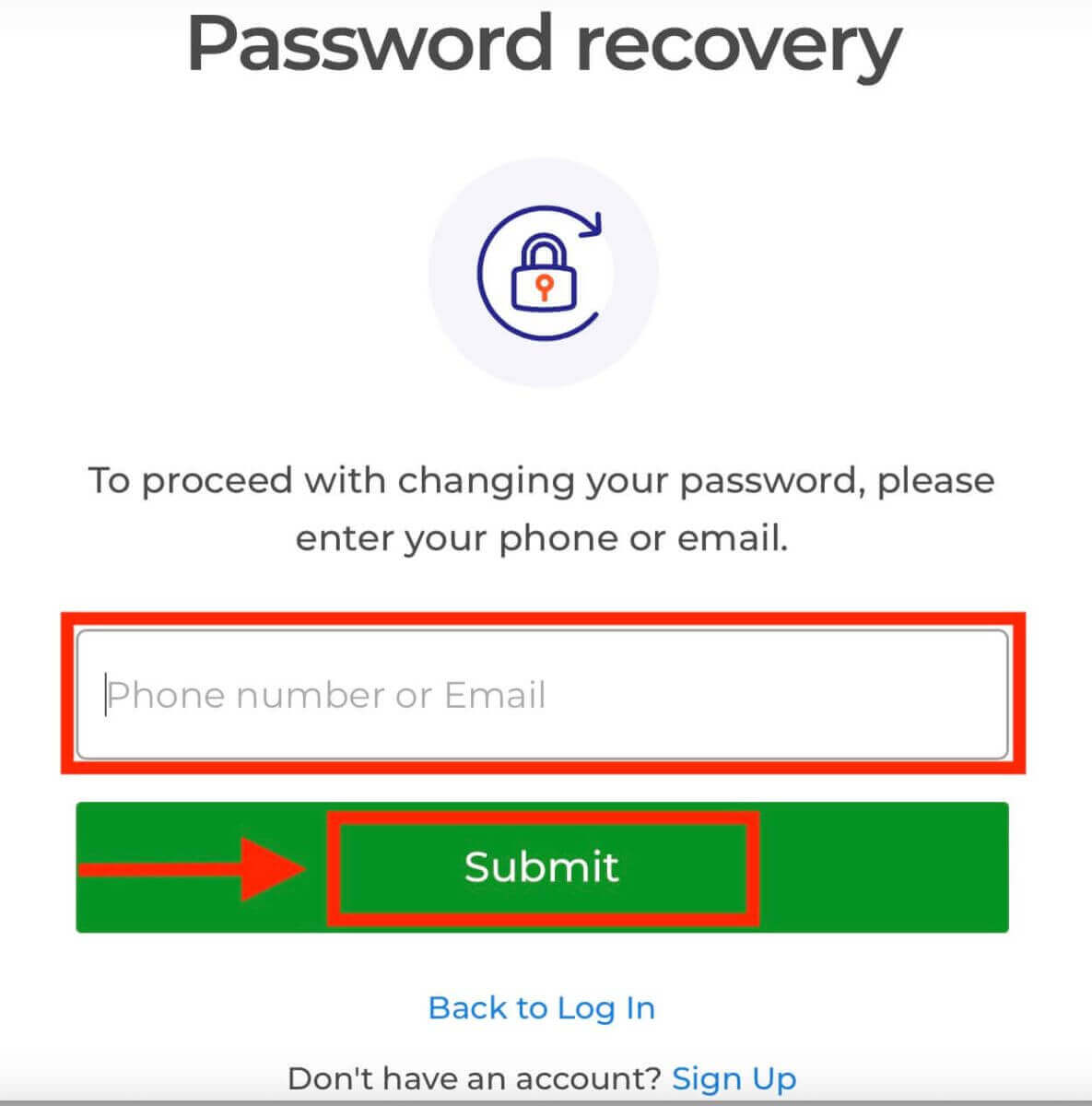
On the password recovery page, you will be prompted to enter the email address associated with your Exnova account. Carefully input the correct email address and proceed.
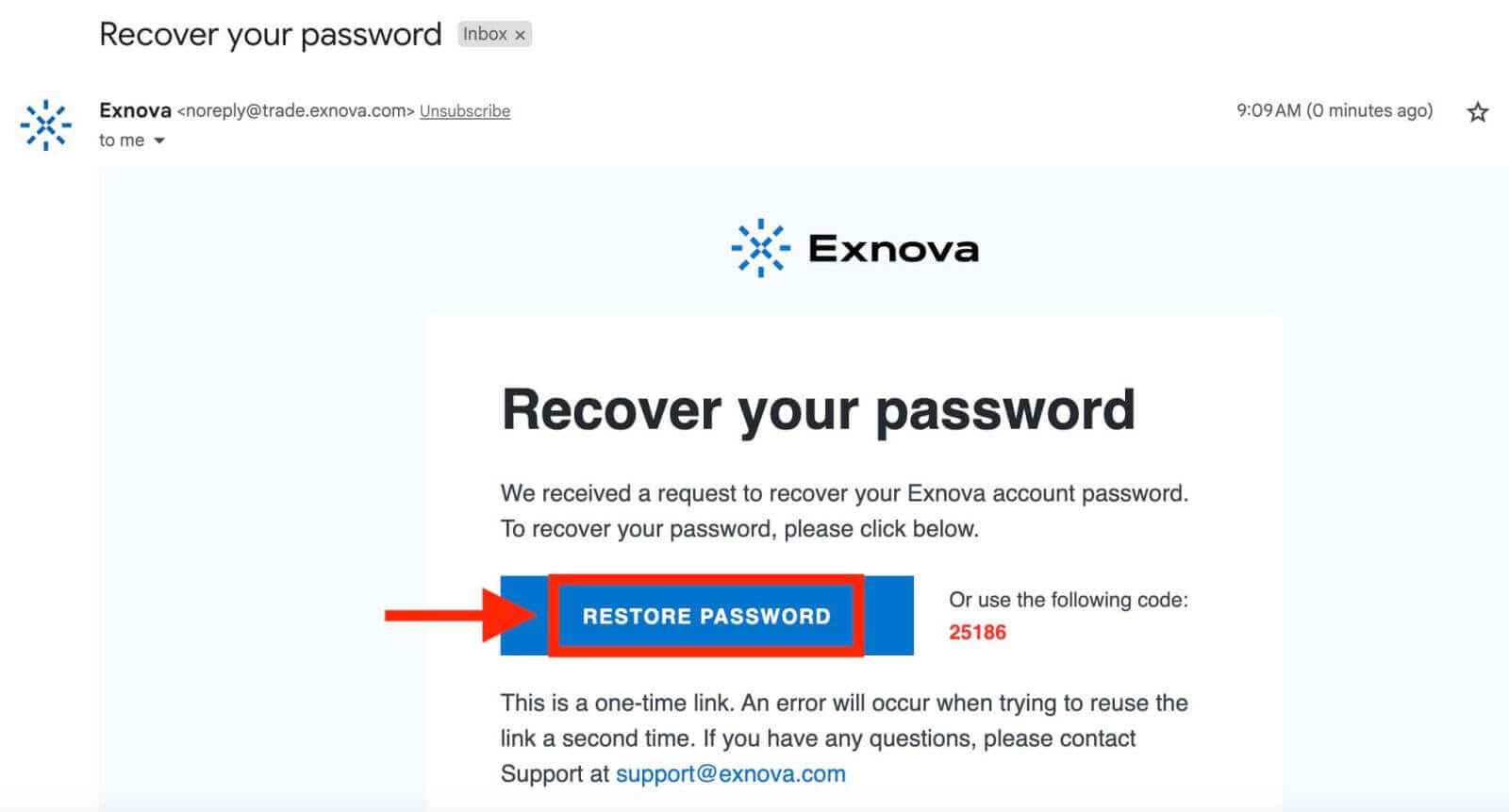
Exnova will send a password recovery link to the email address you provided. Check your inbox for an email from Exnova and click "RESTORE PASSWORD".
The link from the email will lead you to a special section on the Exnova website. Enter your new password here twice and click the "Confirm" button.
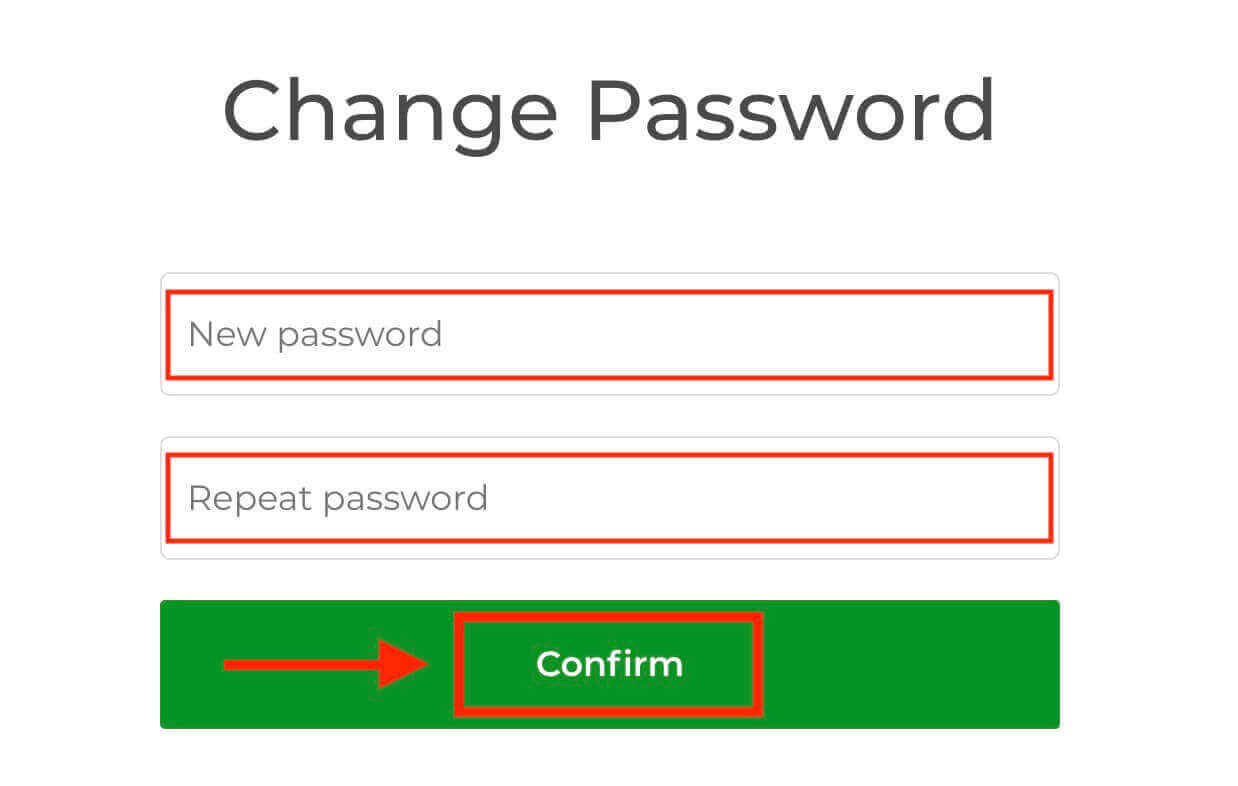
Once you’ve successfully reset your password, you can return to the Exnova login page and log in using your new credentials. Your account access will be restored, allowing you to resume your work and activities.